6.1 When to Use PiP
What you're creating: A purposeful on-camera presence — used only where it adds warmth, trust, or demonstrates physical inputs.
Human presence: let viewers see the person behind the voice
Quick reactions: smile, nod, or react naturally to keep energy up
Demonstration of physical inputs: like keyboard shortcuts, mobile gestures, or multi-device setups
6.2 Framing & Scale
What you're creating: A well-positioned PiP frame that never covers key UI elements — sized right and placed with eye-line in mind.
Size: aim for 18–28% of screen width at 1080p
Placement: default to bottom-right but move it dynamically if it blocks key content — never cover buttons, tooltips, pop-ups, or labels
Eye-line: eyes should sit in the upper third of the PiP frame — if possible, look toward the interface to subconsciously cue the viewer where to focus
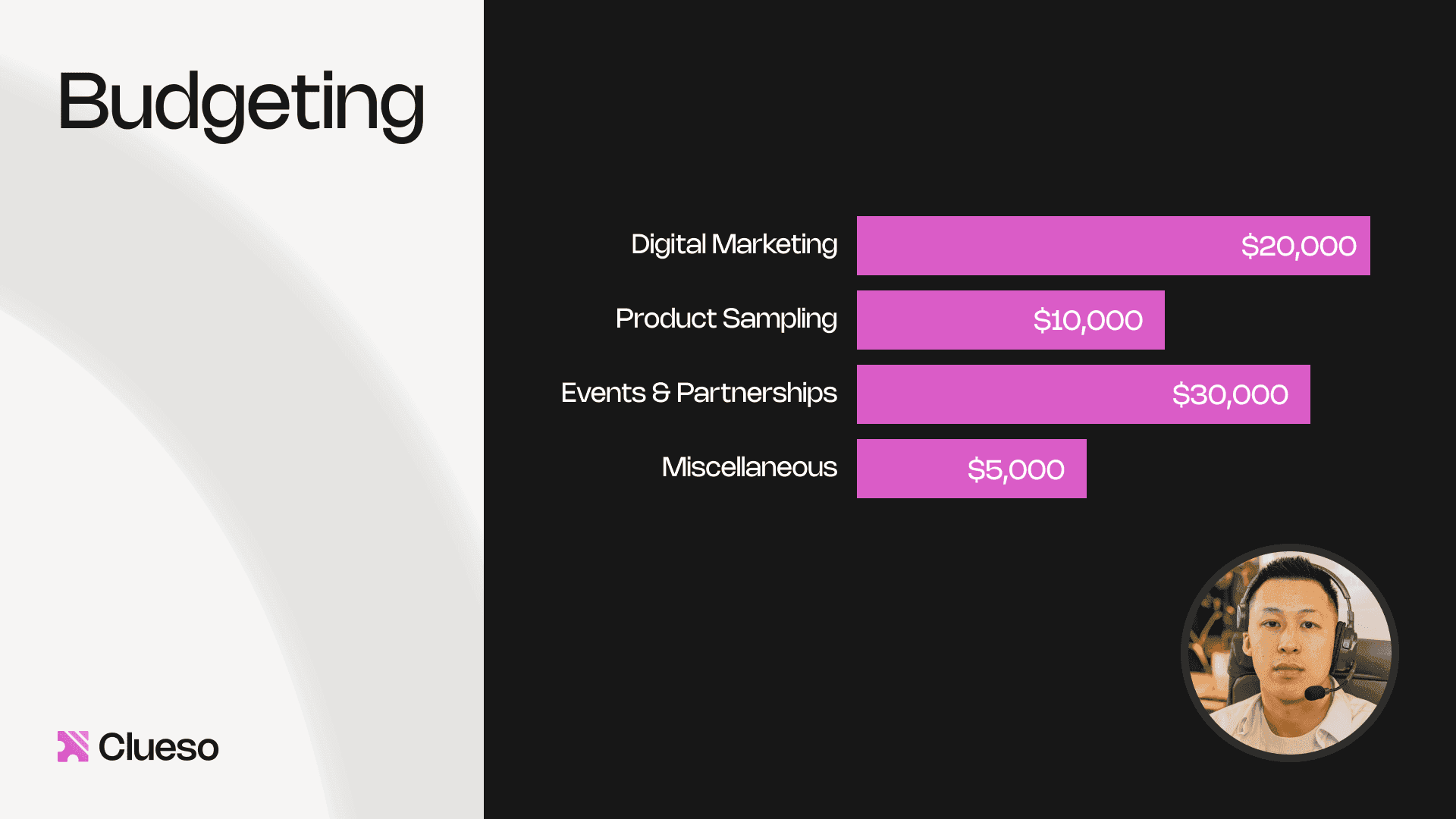
6.3 Visual Treatment
What you're creating: A PiP frame that visually separates from the screen — rounded, bordered, and set against a clean background.
Shape: rounded rectangle or circle — match your brand's radius (e.g., 12–16 px)
Edge: use a 2–4 px border or a soft shadow to visually separate from the screen
Background: use a clean, neutral wall or soft background blur — avoid clutter or deep contrast that pulls focus — skip greenscreen unless you're very good at keying
Lighting: even, soft lighting is key — ring lights still work, just keep the color temperature consistent
6.4 Audio
What you're creating: Clean, isolated audio — camera mic muted if silent, headphones or echo cancellation if speaking live.
If PiP is silent (voiceover only): mute your camera mic to avoid ambient noise leaks
If speaking live on camera: use headphones or good echo cancellation, and set your mic gain once and stick with it
6.5 Timing
What you're creating: A deliberate ebb-and-flow of PiP visibility — on during transitions and CTAs, off during dense UI steps.
| Use PiP During… | Hide PiP During… |
|---|---|
| Intro or hook | Dense UI walkthroughs |
| Transitions between steps | When showing fine cursor work |
| Emphasis or reactions | When screen real estate is tight |
| CTAs or end slide delivery | Fast or technical sequences |