8.1 Zooms & Pans
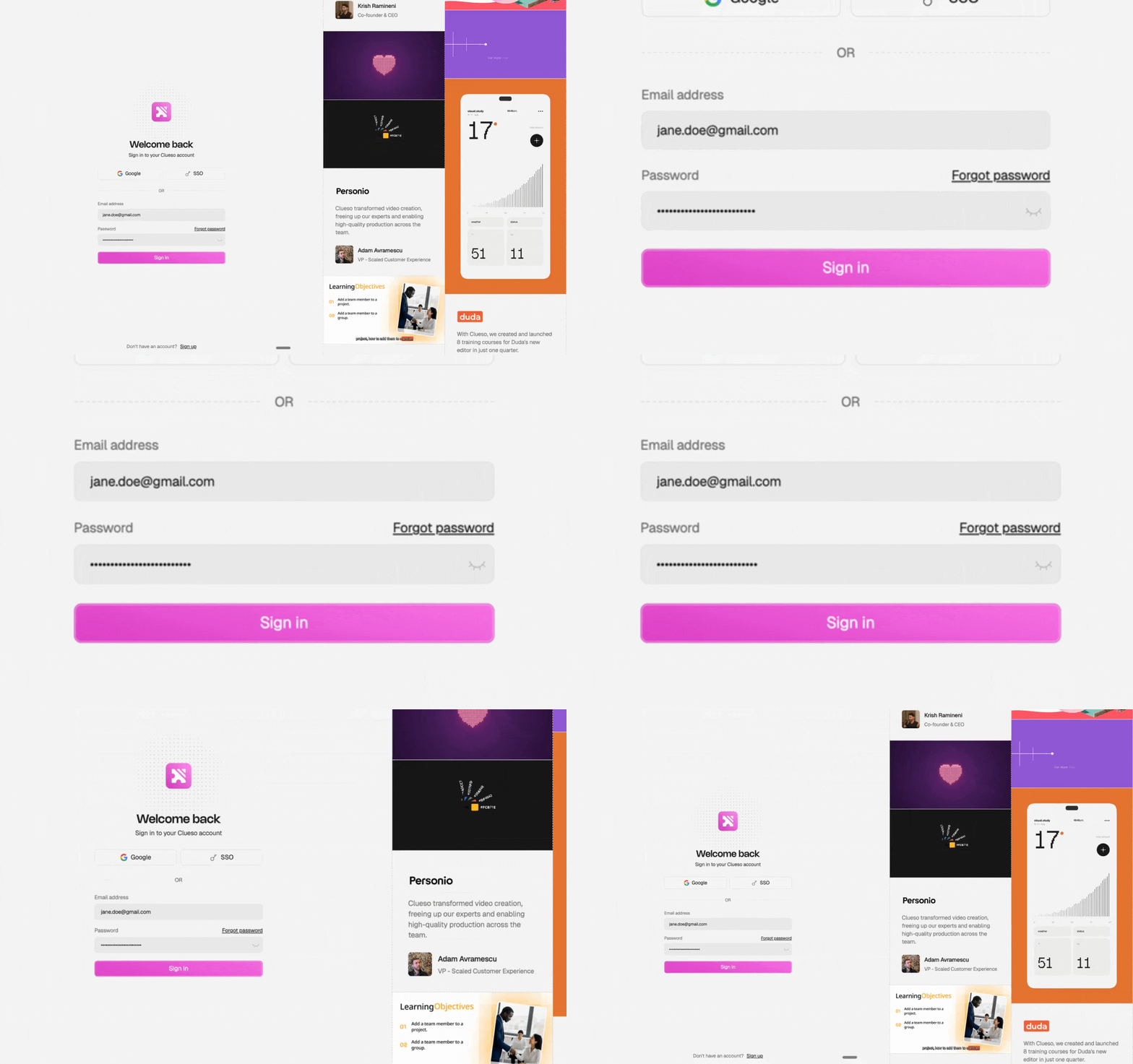
What you're creating: Subtle, anchor-point zooms that draw the viewer's eye to the right element — soft easing, no more than 15%.
Use 5–10% push-ins to emphasize an element — like a button, label, or setting
Avoid zooming in more than 15% unless showing tiny UI (e.g., a tiny gear icon or dropdown)
Anchor zooms to the element of focus, not the dead center of the screen
Add soft ease-ins and outs (120–200 ms) so zooms feel natural, not abrupt
8.2 Highlights
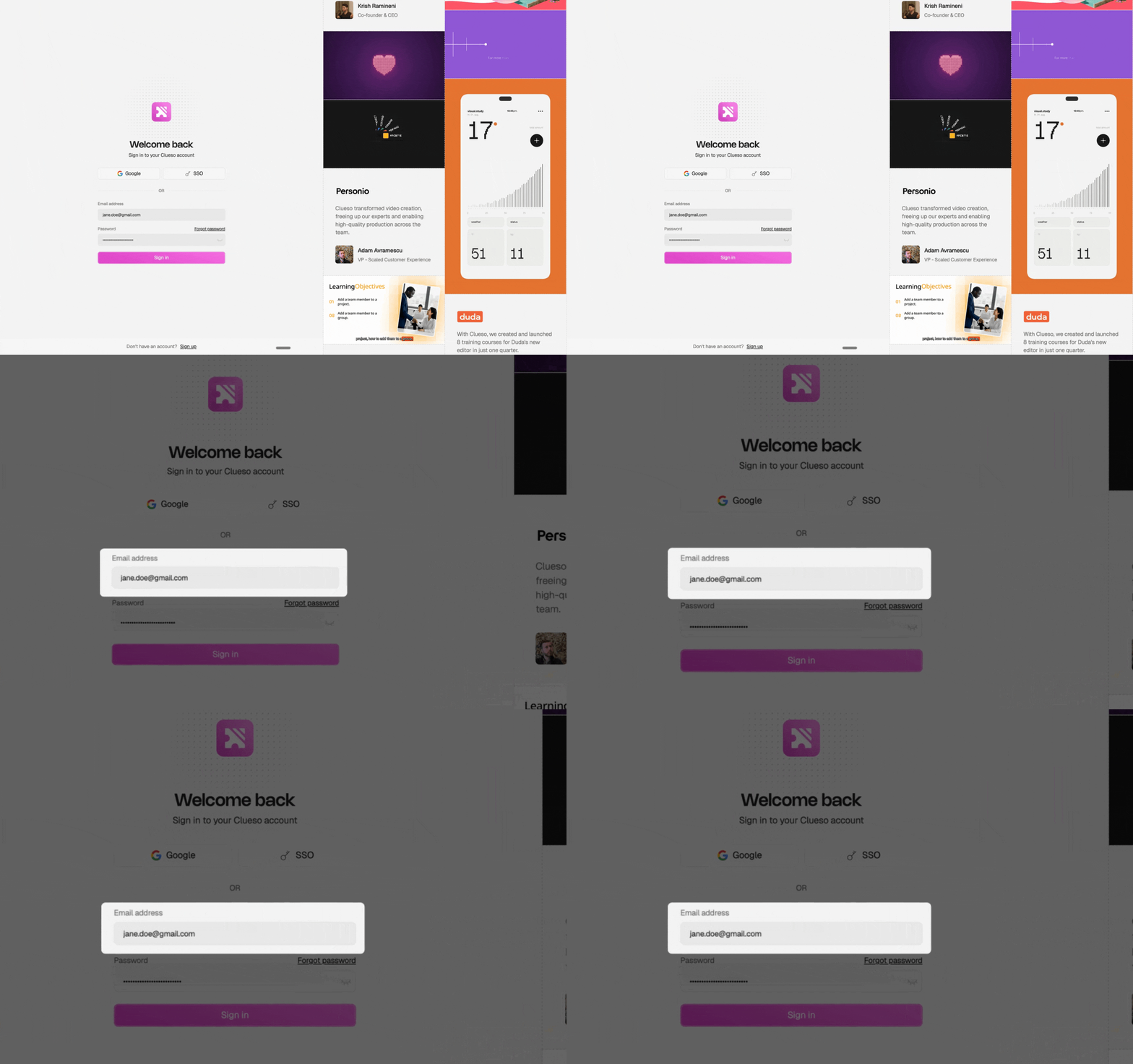
What you're creating: Light, clean visual cues — soft rectangles or semi-transparent masks — that spotlight areas without distracting rings or effects.
Use soft rectangles or semi-transparent masks to spotlight areas
Click highlights: a subtle 200–300 ms pulse at low opacity is enough to signal interaction — avoid exaggerated ripple effects unless part of your brand look
8.3 Callouts
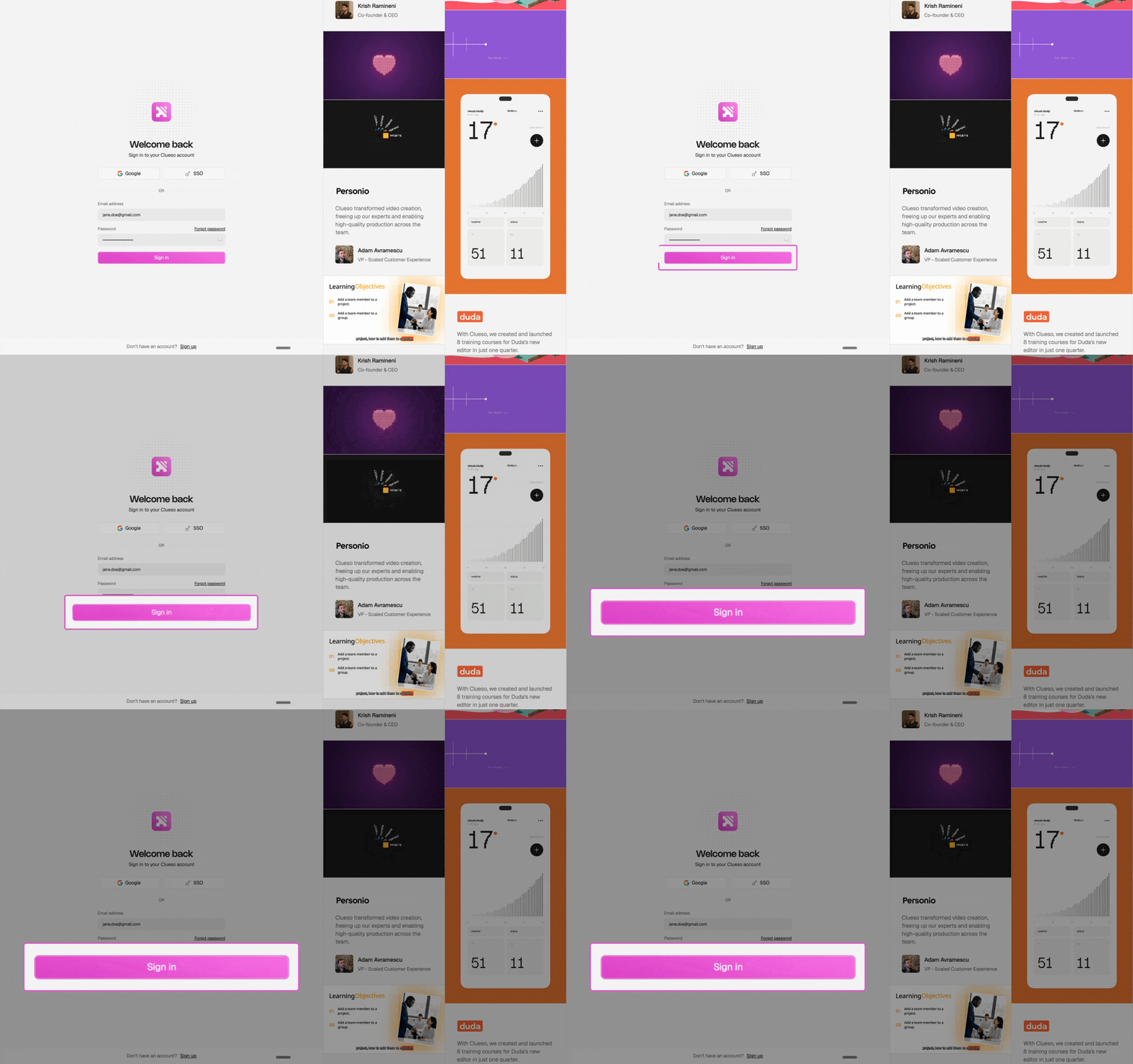
What you're creating: On-brand callouts in a single consistent style — positioned outside the focal area, never covering the UI being explained.
Use a single style for all callouts: match your brand's primary color, corner radius, and drop shadow
Keep fonts legible and sentence case only
Position callouts outside the focal area — use a subtle leader line (thin, soft color) to point
Never cover the UI you're explaining — let the interface breathe
8.4 Blur & Redaction
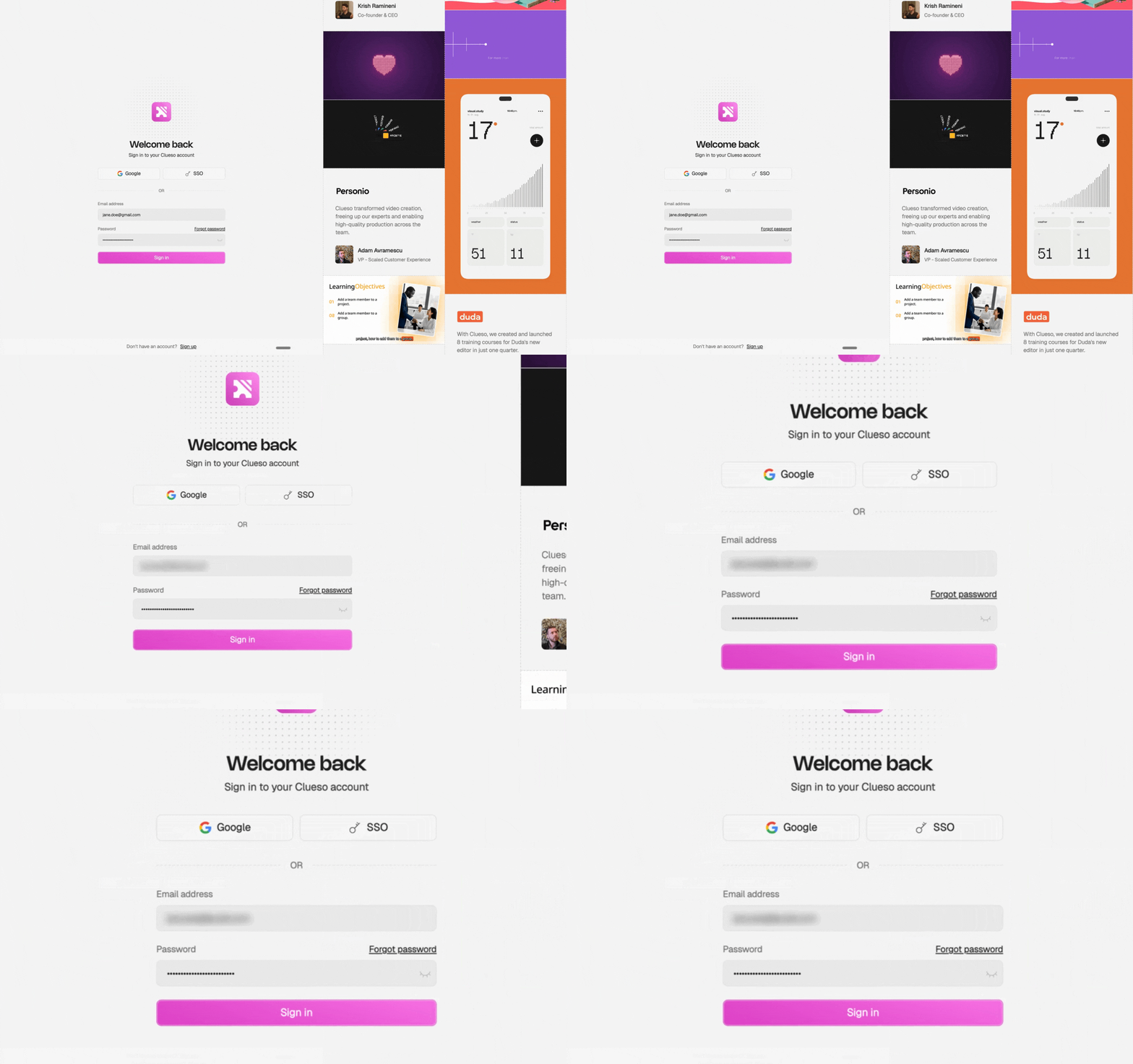
What you're creating: Consistent, on-brand blur applied to any sensitive data — same style across all shots.
Protect sensitive data with Gaussian blur or pixelation, depending on what blends best with your UI
Apply the same style across all shots — a sudden switch between blur types looks sloppy
8.5 Shortcuts & Keystrokes
What you're creating: Brief, well-placed keystroke overlays — shown only for recommended paths and auto-hidden after 2–3 seconds.
Only show overlays for recommended paths — not every possible option
Place overlays in the bottom-left corner, away from the main action
Keep them short — 2–3 seconds on screen, then auto-hide
Use clean, legible fonts in sentence case or proper casing — e.g., "Cmd + Shift + 5"