How to turn a help article into a short walkthrough video
Your written help articles already contain the outcome, the step order, and the steps you cut. Here's a repeatable way to turn one into a short walkthrough video, publish both together, and keep the video in sync when the product moves.
TL;DR
- The article is the brief: its outcome and its step order carry over, so scripting is reconciliation rather than writing.
- Film tasks that are repetitive or costly to get wrong. Don't film conceptual explanation — a video of someone clicking teaches no mental model.
- Record one task in one pass, at normal pace, on the real product. Two to five minutes.
- Publish the video inside the article it came from, not on a separate video page nobody browses.
- Decide the update path before you record, because the product and the video will disagree within a release or two.
Most help articles are usually okay. They do the job they're supposed to do. Someone wrote it, screenshotted the right dashboards, and had it reviewed. The article might even answer what the user is looking for. The problem arises when the reader lands on an actual settings page that now looks different from what screenshots in that article suggest.
However, if you could turn such old articles into short walkthrough videos, it can be a game changer for new users exploring your product. Making such videos shouldn't be a whole new project in iteself though.
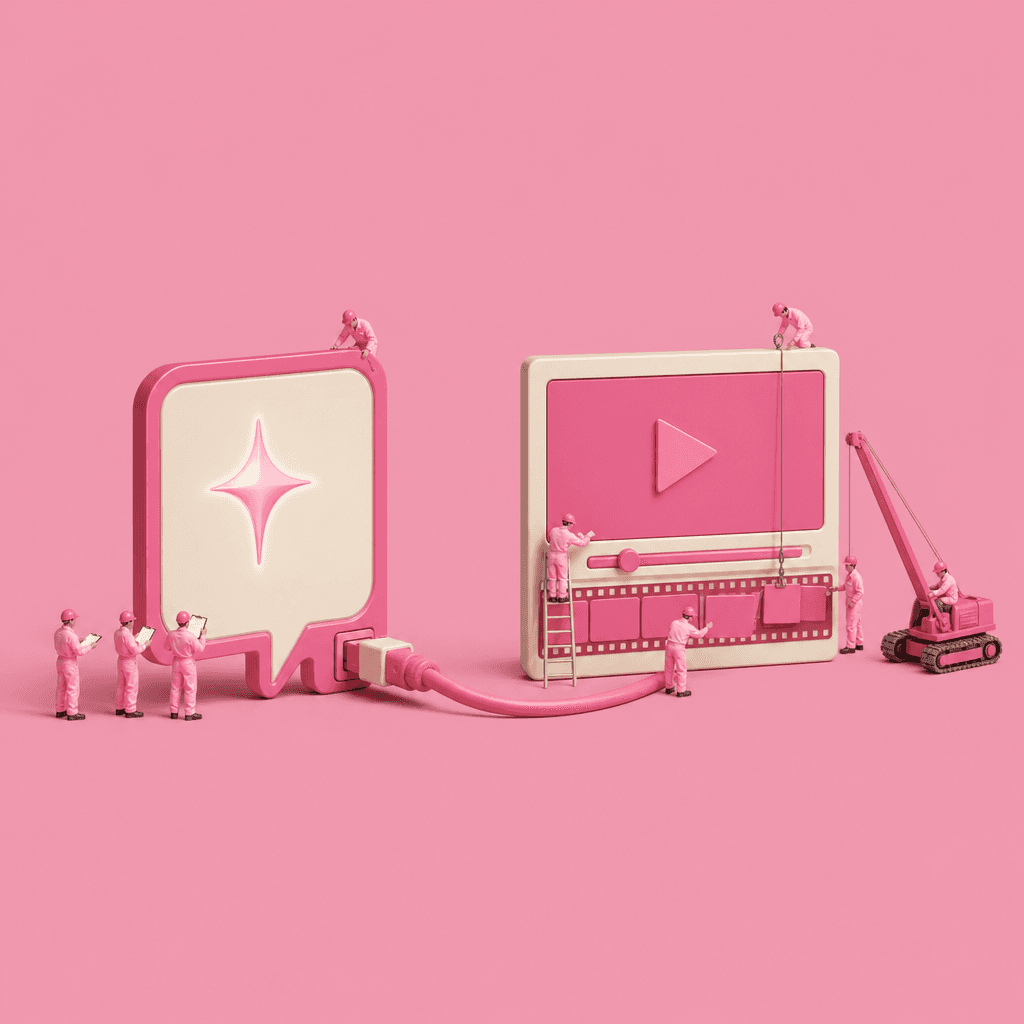
The hard part of writing a help article is already done. All you need to do convert that help article into a helpful video. And today, AI is allowing you to do that with relative ease.
This article helps you create that workflow that turns your help articles into walkthrough videos for users.
What is a walkthrough video, and which help articles deserve one?
A walkthrough video is a short screen recording that shows one task being completed in the real product, narrated as it happens, and published alongside the written steps for the same task. It documents a sequence of actions instead of describing them, which is what makes it useful for setup flows and anything buried in a settings menu.
Text is better for scanning and for looking up a single value. Video takes over when the answer is a sequence of clicks across an interface the reader has never seen, because a paragraph makes them translate words back into actions, and that translation step is where people give up and open a ticket. So this isn't a migration. You're adding a second format to the articles that need one, and leaving the rest alone.
Four kinds of article tend to justify the recording time:
- Tasks done the same way every time, where the reader wants to get through it correctly and move on.
- Actions where a mistake is expensive, and the video works as a guardrail rather than a reference.
- Do-it-once-and-forget-it tasks that nobody remembers doing last time.
- Articles your support team keeps pasting into tickets, which is the clearest signal you have that reading them isn't enough.
Two kinds of article don't survive the format. Conceptual explanation needs mental models and examples, and steps get in the way of both. Parts of the product meant to be explored also resist it, since a fixed walkthrough implies there's one correct path. If you're unsure which category an article is in, our breakdown of when a step-by-step guide is the right format sorts it faster than a meeting will.
How do you get a script out of an article you already wrote?
Start with the article's promise, not its paragraphs. If you can finish the sentence "by the end of this, you will…" in one line, that line is the video's scope. If you can't, the article is covering several jobs, and the fix is to split it before you record rather than to make an eleven-minute video nobody finishes.
Then cut to the minimum path. Walk the steps as though you were doing the task, and drop anything a reader could skip while still reaching the same end state. Written guides accumulate just-in-case context because it's cheap to add a sentence. On video it costs the viewer 20 seconds and their attention.
Don't read the article aloud. Written steps are built to be scanned, and spoken aloud they sound like a terms-of-service recording. The tighter first draft comes from doing the task once while narrating it, then checking that transcript against the article to catch the step you did from muscle memory and forgot to say.
The article's structure survives this; its sentences mostly don't. That tension between writing for a reader and writing for someone following along is the same one covered in SEO versus UX in writing how-to guides, and it's worth resolving before you hit record.
How do you record the walkthrough in one pass?
Most re-recording happens for reasons that have nothing to do with narration. The account was missing a permission, the demo data was a colleague's real inbox, or a notification banner landed mid-click. Set the state up first and the take usually survives.
- Prepare the account: the right role, sample data you'd be happy to show a customer, and a clean window. If any real customer data has to be on screen, decide how you're recording product demos without exposing customer data before recording, not after.
- Walk the flow at a normal pace and keep going when you fumble a sentence. Stopping to restart is what turns a four-minute job into an afternoon.
- Hold it to one task and two to five minutes, on the actual product rather than narration over slides. If the viewer can't see the exact thing they're trying to do, the recording isn't documenting anything.
Tool choice matters less here than people expect, though it's worth picking one you won't fight — our rundown of screen recording software for Mac covers the options. What does matter is restraint on screen, which is the subject of how to make tasteful screen-recorded videos.
What turns a raw recording into something you'd publish?
A first take has dead air, a few ums, and a cursor that wanders while you think. Production is where docs-to-video programs quietly stop, because a customer education team of one is not going to open an editing timeline every time a release renames a button.
Clueso works from the transcript instead: it removes filler words, zooms on the clicks that matter, adds a natural-sounding AI voiceover, applies your branding, and produces a formatted step-by-step article from the same recording, so one take gives you the video and the written version together. Captions come out of that same transcript. Editing text rather than a timeline is what makes the fourth video cost less than the first.
One decision here deserves a deliberate answer rather than a default: whether an AI voiceover belongs on customer-facing content in your category at all. We've laid out both sides in should we use AI voiceover in customer-facing videos.
If the knowledge base ships in more than one language, settle that before you build the first ten videos, since retrofitting is harder than planning for it. Start with localizing training and product videos.
Where should the walkthrough video live?
Inside the article it came from, above the step people abandon. A separate video gallery is a place videos go to be counted, not watched. The strongest setup is a short recording with the written steps underneath it, which covers the people who'd rather skim, search, or copy a value out of the page.
Where the file itself sits is a separate question from where the player appears, and getting it wrong shows up later as broken embeds across a dozen pages. Our guide to hosting videos for business covers the tradeoffs.
The same recording usually has two more homes. Product updates are one: a 30-second clip explains a change faster than a changelog entry, which is the whole premise of turning release notes into product launch videos. Internal SOP creation is the other, where the same workflow serves the team running the process rather than the customer using it — see using AI to create and update SOPs.
How do you keep the video in sync with the product?
An out-of-date paragraph gets forgiven. An out-of-date recording gets a ticket, because the viewer is watching a screen that doesn't exist while holding the one that does. That asymmetry is the real reason video libraries get abandoned rather than maintained.
Do the arithmetic on your own release history before you commit to a library size. Count the releases last quarter that changed a screen a published article depends on, multiply by the number of videos touching those screens, and divide by the hours your team actually has for maintenance. That number, not your recording speed, sets how many videos you can responsibly own.
Two habits keep that number survivable. Update the affected step instead of re-recording the video, which is low-effort with transcript-based editing and expensive without it. And trigger the audit off the release, not off a calendar reminder nobody honors.
For the operational side of this, we've written up keeping a training video library up to date with your product and automatically updating help center articles. If you're building the routine from scratch, seven AI moves for customer education teams is a shorter read.
Frequently asked questions
Should the walkthrough video replace the knowledge base article?
No. Keep both on the same page. Text is natively searchable and a video only becomes searchable with a transcript, so replacing the article costs you the lookups and the indexing.
How long should a walkthrough video be?
Two to five minutes, scoped to one outcome. A recording that tries to cover the whole product teaches none of it, so split anything larger into a series.
How do we handle product updates without re-recording everything?
Patch the segment the change affected and leave the rest of the lesson intact. Re-recording end to end is only cheaper when a revision changes several connected steps at once.
Does the same workflow apply to SOP creation rather than customer docs?
Yes, with one change: internal SOPs are usually reverse-engineered from the final screen, because starting at the top invites just-in-case setup steps and turns the SOP into a product tour.
Do we need a video team or an editor for this?
No. Screen-based tools handle the production step, which is what lets the subject-matter expert who knows the workflow produce the video themselves. For the broader version of that argument, see how customer education teams build always-on learning with video.
Where to start this week
Ask support which three articles they paste into tickets most often, and record the first one today. Time the whole thing, from opening the article to publishing the video underneath it, and write the number down.
That number multiplied by your article backlog is your honest estimate, and it's the only one worth bringing to a planning conversation. If it's larger than the time you have, the fix is a narrower list of articles rather than a faster recording pace — the same conclusion turning product recordings into customer training videos reaches from the other direction.
Ashish Upadhyay
Senior Content Marketing Manager
Ashish is a Senior Content Marketing Manager at Clueso with 7+ years of experience across content, product, brand marketing. Now his mission is to help product and customer education teams realize the value of video-based learning. Outside of work, Ashish sketches, sings, plays the guitar, cooks, and does all things LLMs can't yet.