
Best Screen Capture Software
Top Tools Compared for 2026
Buyer's Overview
Creating professional screen and video captures has become non-negotiable for modern businesses. Whether you're demonstrating product features, capturing tutorial content, or developing training materials, choosing the right screen capture software can drastically impact your team's productivity and content quality.
Yet, many companies struggle with cumbersome capture processes, inconsistent video quality, and challenges maintaining professional standards across teams.
61% of companies point to time and bandwidth as their biggest hurdles in the video creation process, with team size, resources, and technical ability trailing close behind at 44%.
— State of Video Report 2024, Wistia
The landscape of screen recording & capture solutions is dramatically evolving to address these challenges. Today's market offers everything from basic screen capture tools to sophisticated AI-powered platforms that automate script writing, voiceovers, and even article generation.
This guide will give you a high-level comparison of leading screen capture software solutions to help you make an informed choice for your specific needs.
Screenshot vs. Screen Recording: What Do You Actually Need?
The term “screen capture software” can mean very different things depending on your workflow. Some users simply need static screenshots for quick sharing and annotations, while others need full screen recordings for tutorials, onboarding, training, or product demos.
Screenshot Tools
Screenshot-focused tools are designed primarily for capturing static visuals. They’re commonly used for bug reporting, UI feedback, or quick documentation snippets. These tools usually emphasize features like arrows, blur effects, callouts, scrolling capture, OCR text extraction, and instant link sharing rather than full video workflows.
Popular screenshot-first tools include Snagit, CleanShot X, Lightshot, Greenshot, and Flameshot.
Best for: Quick visual communication, lightweight documentation, feedback sharing, and support workflows.
Screen Recording Tools
Screen recording platforms focus on capturing workflows and interactions in motion. Instead of static screenshots, they help teams explain processes step-by-step through videos, walkthroughs, GIFs, and narrated demos.
Popular screen recording softwares include Clueso, Loom, Camtasia, OBS Studio, and Screen Studio.
Best for: Product demos, onboarding, tutorials, training videos, and workflow education.
📌 Where Clueso Fits
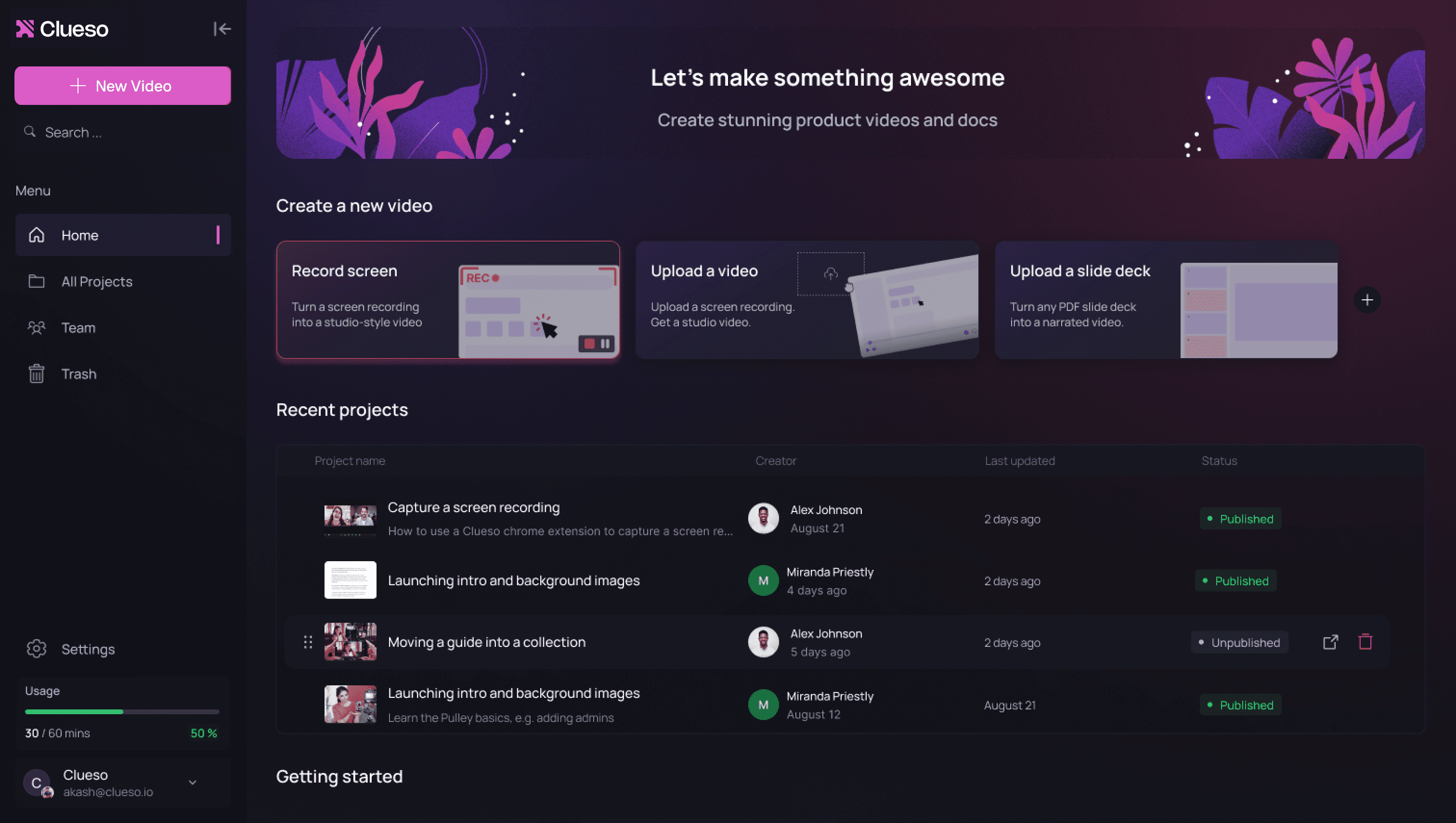
Clueso combines video creation with documentation workflows. Instead of manually recording videos, taking screenshots separately, and building documentation afterward, Clueso helps teams turn a single recording into AI-narrated videos, and step-by-step guides with annotated screenshots and GIFs.
Screen Capture Software Challenges: What Teams Struggle With
Creating professional screen captures should be simple, but many teams face challenges that waste time, slow down product launches, and affect content quality. Here are the key challenges teams face:
1. Quality and Professionalism
- Amateur-Looking Videos: screen captures often end up with jumpy cursors, messy transitions, and unprofessional navigation paths
- Brand Inconsistency: Teams struggle to maintain consistent branding when different members create videos
- Poor Sound Quality: Common issues include background noise, echo, and uneven audio levels
- Unprofessional Narration: Videos are often filled with filler words, pauses, and informal language
2. Time and Efficiency
- Script Preparation: Teams waste hours writing and revising scripts for each video
- Recording Retakes: Small mistakes or updates require complete video re-recordings
- Editing Time: Creating professional-looking videos requires extensive post-production
- Voice Recording: Setting up and recording professional voiceovers is time-consuming
3. Technical Barriers
- Basic Editing Tools: Simple screen recorders don't offer professional editing features
- Difficult Updates: Changing product features means re-creating entire videos
- Limited Formats: Most tools can't convert videos into different content types
- Separate Documentation: Teams often need different/multiple tools to create written guides and articles, or need to do it manually.
Screen Capture Hurdles: Impact on Teams
| Challenge | Traditional Process | Business Impact | Time Cost |
|---|---|---|---|
| Video Quality | Manual recording and editing | Lower engagement and credibility | 2-3 hours per video |
| Script Creation | Writing and reviewing scripts | Delayed content creation | 1-2 hours per video |
| Voiceover Quality | Multiple recording sessions | Inconsistent brand voice | 1-2 hours per video |
| Content Updates | Complete re-recording needed | Outdated documentation | 2-4 hours per update |
| Multi-format Content | Manual conversion process | Limited content reach | 3-4 hours per piece |
| Branding Consistency | Manual editing and formatting | Inconsistent brand experience | 1-2 hours per video |
The Real Cost
- Teams spend an average of 8-12 hours creating a single professional screen capture video
- Product launches get delayed by 1-2 weeks waiting for updated documentation
- Support teams struggle with outdated content, leading to increased ticket volume
- Marketing teams can't quickly create content for different channels and formats
This complex web of challenges is why modern teams are turning to AI-powered screen capture solutions that can automate and streamline these processes. In the next section, we'll explore how advanced features in modern screen capture softwares address these challenges.
Must-Have Features in the New-Age Screen Capture Tool
Today's screen capture solutions offer sophisticated features that transform basic screen captures into professional content. Let's explore the key capabilities that modern teams need:
1. Professional Production Features
Video Enhancement
Advanced screen capture softwares give you the option to improve final video outputs without needing professional editing skills. Tools like Screen Studio automatically smooth cursor movements. Video recording softwares like Clueso let you add smart zoom and blur effects, ensuring your recordings look polished and professional without manual editing.
Professional Voiceovers
Gone are the days of multiple recording takes and background noise issues. AI voiceovers have revolutionized screen capture, with tools like Clueso offering authentic AI narration in multiple accents and languages.
"What used to take hours with multiple retakes now takes minutes. The AI voices sound incredibly natural and professional,"
— Disha Munoth, Lead of Product Operations at Spendflo.
Annotations and Visual Guidance
Features like arrows, callouts, highlights, numbered steps, and blur effects help direct attention to important UI elements and reduce confusion in tutorials, onboarding guides, and support documentation. Modern tools like Clueso extends annotations into AI-generated documentation, GIF walkthroughs, and narrated product demos — making it easier for teams to create complete onboarding and education workflows from a single recording process.
Branding and Customization
Leading tools like Camtasia and Clueso let teams maintain brand consistency with custom intros, outros, and visual elements. This ensures all team members can create on-brand content regardless of their design expertise.
2. Time-Saving Capabilities
AI Script Generation
AI-powered script generation has transformed the recording process. Tools now analyze your screen actions and automatically create professional scripts, cutting preparation time significantly.
Smart Editing
Modern editing features go beyond basic cuts and trims. Advanced tools offer mistake correction without re-recording, remove filler words and pauses, and also allow batch processing capabilities for efficient content production.
Multi-Language Support
Leading platforms now offer language translation capabilities, making content globally accessible, and remove the reliance on translators. Clueso's one-click translation features help teams create localized content in 150+ languages in minutes rather than weeks.
3. Content Versatility
Documentation Feature with Screenshots
Manually creating screenshot-based documentation is time-consuming. As documentation scales, this process becomes difficult to maintain consistently. The best tools now double as documentation software that automatically generate step-by-step guides from your recordings.
📌 Automating Screenshot-Based Documentation
Clueso approaches documentation differently by automatically generating screenshots, GIFs, and step-by-step guides directly from a screen recording workflow. This significantly reduces the manual effort typically required to maintain onboarding content and SOP documentation while helping teams keep educational content more consistent and easier to update over time.
"Clueso has cut short our documentation time massively - what used to take us a day now takes less than 5 mins,"
— Adarsh Tadimari, Co-founder of Plotline.
Multi-Format Output
Screen capture apps like Guidde can automatically convert videos into various formats, including articles and training materials. This helps teams maximize the value of their content across different channels.
Easy Updates
Content maintenance has now become more streamlined with tools offering quick updates across all formats. When product features change, teams can update all related content without starting from scratch.
These features represent a significant evolution in screen capture technology. While basic screen capture tools still have their place, teams looking to scale their content creation efficiently need these advanced capabilities.
Free Screen Capture Tools
For many users, free screenshot and lightweight capture tools are enough for quick annotations, bug reporting, or casual sharing. Several free and freemium tools remain extremely popular because they’re fast, simple, and easy to use.
Popular Free Screen Capture Tools
| Tool | Best For | Platform |
|---|---|---|
| QuickTime Player | Basic screen recording and lightweight video capture | Mac |
| Windows Snipping Tool | Basic screenshots and quick annotations | Windows |
| Lightshot | Fast screenshot sharing and lightweight editing | Windows, Mac |
| Greenshot | Open-source screenshot workflows | Windows |
| Flameshot | Advanced Linux screenshot annotations | Linux |
Why Teams Usually Upgrade Beyond Free Tools
As workflows become more collaborative and documentation-heavy, teams often outgrow standalone screenshot tools.
Common challenges include:
- manually organizing screenshots
- maintaining outdated documentation
- creating separate videos and guides
- inconsistent branding
- lack of collaboration workflows
- repetitive onboarding explanations
This is where teams typically move toward more comprehensive platforms that combine screenshots and screen recordings. They also look for tools with annotations, AI narration, documentation generation, cloud sharing, and GIF creation features inside a single workflow.
Top Screen Capture Solutions Compared
Let's take a more detailed look at how these leading screen capture solutions compare across essential features and capabilities.
Best Screen Capture Software Tools: Head-to-Head Comparison
| Features & Capabilities | Clueso | Loom | Quick Time | Camtasia | Guidde | Screen Studio | Windows Snipping Tool | Lightshot | Greenshot | Flameshot |
|---|---|---|---|---|---|---|---|---|---|---|
| Core Recording | ||||||||||
| Basic screen capture | ✔︎ | ✔︎ | ✔︎ | ✔︎ | ✔︎ | ✔︎ | ✔︎ | Screenshot only | Screenshot only | Screenshot only |
| AI Capabilities | ||||||||||
| AI Script Generation | ✔︎ | ❌ | ❌ | ❌ | Limited | ❌ | ❌ | ❌ | ❌ | ❌ |
| AI Voiceover | ✔︎ | ❌ | ❌ | Basic | ✔︎ | ❌ | ❌ | ❌ | ❌ | ❌ |
| Auto Article Generation | ✔︎ | ❌ | ❌ | ❌ | ✔︎ | ❌ | ❌ | ❌ | ❌ | ❌ |
| AI Image Generation | ✔︎ | ❌ | ❌ | ❌ | ❌ | ❌ | ❌ | ❌ | ❌ | ❌ |
| AI Motion Graphics | ✔︎ | ❌ | ❌ | ❌ | ❌ | ❌ | ❌ | ❌ | ❌ | ❌ |
| Professional Features | ||||||||||
| One-Click Branding | ✔︎ | Limited | ❌ | Manual | Limited | Manual | ❌ | ❌ | ❌ | ❌ |
| Audio-video sync | ✔︎ | ❌ | ❌ | Manual | Manual | Manual | ❌ | ❌ | ❌ | ❌ |
| Auto Visual Effects | ✔︎ | ❌ | ❌ | ✔︎ | Limited | ✔︎ | ❌ | ❌ | ❌ | ❌ |
| End-to-end video templates | ✔︎ | ❌ | ❌ | Limited | Limited | ❌ | ❌ | ❌ | ❌ | ❌ |
| Content Management | ||||||||||
| Easy Updates | ✔︎ | ❌ | ❌ | ❌ | ❌ | ❌ | ❌ | ❌ | ❌ | ❌ |
| Multi-Format Export | ✔︎ | Limited | ❌ | Limited | Limited | Limited | Limited | ❌ | ❌ | ❌ |
| Transcript Editing | ✔︎ | Limited | ❌ | ❌ | Limited | ❌ | ❌ | ❌ | ❌ | ❌ |
| Enterprise Ready | ||||||||||
| Team Collaboration | ✔︎ | ✔︎ | ❌ | Limited | Limited | Limited | ❌ | ❌ | ❌ | ❌ |
| SSO/Enterprise Security | ✔︎ | ✔︎ | ❌ | ❌ | Limited | ❌ | ❌ | ❌ | ❌ | ❌ |
| Pricing | ||||||||||
| Starting Price | $120/mo for 2 editors | $15/mo per user | Free | $179.88/year per user | $19/mo per user | $9/mo per user | Free | Free | Free | Free |
| Enterprise Features | ✔︎ | ✔︎ | ❌ | Limited | Limited | Limited | ❌ | ❌ | ❌ | ❌ |
Clueso
Clueso differentiates itself by combining screen capture with AI-driven content creation, turning simple recordings into polished videos and articles. It automates the entire workflow without requiring editing skills. Its customization options make it a strong fit for teams focused on branded, professional output.
Key Features
- Dual output - professional video and step-by-step documentation
- Plan, create and edit videos by chatting with AI
- AI-powered script generation
- Studio-quality AI voiceovers in 150+ languages
- Auto addition of visual effects like Zooms, Spotlights, Callouts
- Image and motion graphics generation with AI
- Automated branding and customization across all content
- Multi-language support with AI-powered translations
- Dynamic captions available in 150+ languages
- Clueprints: end-to-end video templates
- Easy content updates without requiring re-recording
- Static slide deck to video conversion
- Enterprise-grade security and collaboration features
What Users Love
"Clueso has completely transformed how we create product education content. We're now producing 30 professional-grade product videos every month. What used to take hours can now be done in just 15 minutes with Clueso."
— Krish Ramineni, Co-founder & CEO, Fireflies.ai
"We used to spend hours writing articles and creating video guides. Now, with a few clicks, we have professional video guides with no background noise, that are easily edited if we want to change anything."
— Nadia Jenayah, Product Adoption Specialist, Efficy
Loom
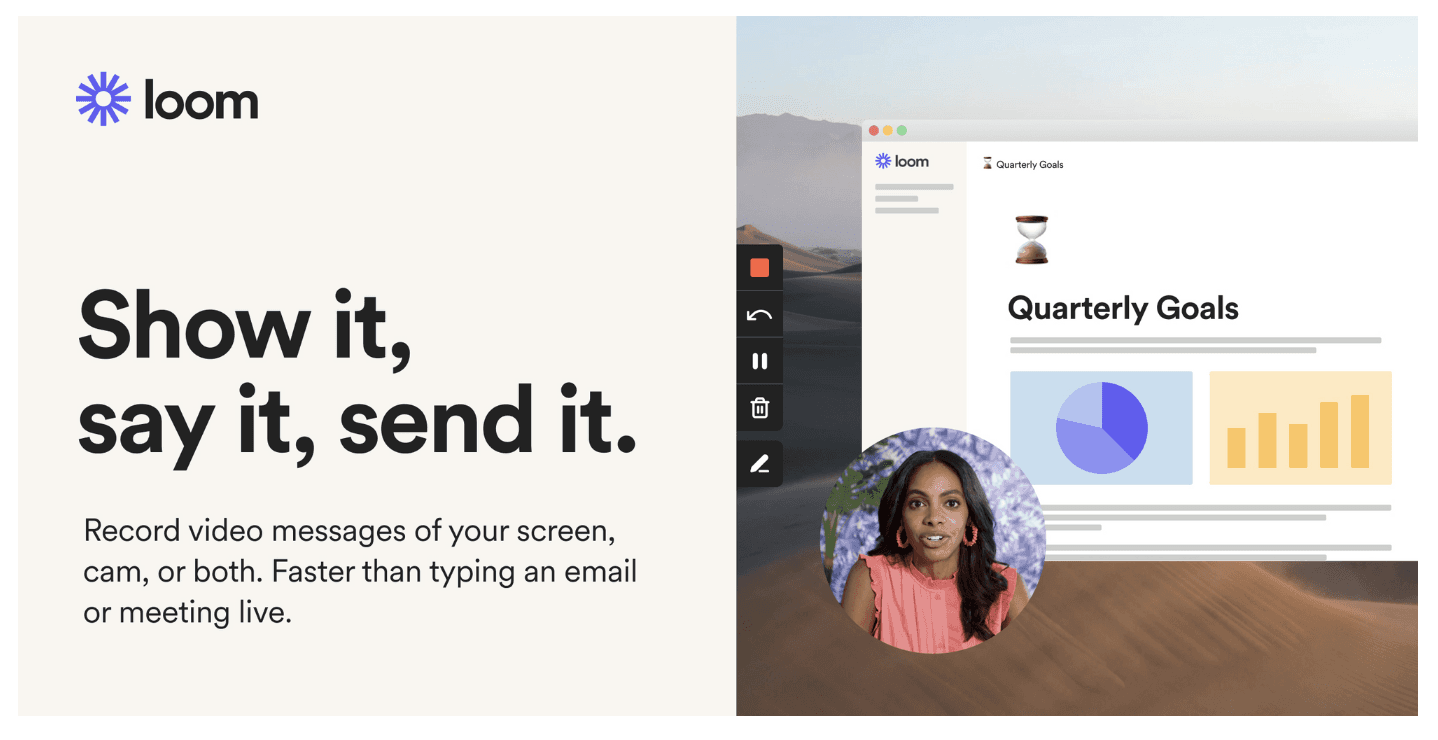
Loom has established itself as a go-to solution for quick, communication-focused screen captures. The platform emphasizes simplicity and speed, making it particularly popular among remote teams for asynchronous communication. While primarily designed for internal communication, Loom has evolved to include features for creating customer-facing content, though with more basic editing capabilities than specialized tools. The platform's strength lies in its seamless integration with workplace tools and its focus on making screen capture as frictionless as possible.
Source: Loom
Key Features
- Instant recording with browser extension and desktop app
- Basic editing capabilities including trim and cut
- Cloud storage with organized library management
- Viewer insights and engagement analytics
- Team collaboration with shared workspaces
- Custom branding options for enterprise users
- Basic annotation tools and mouse emphasis
- Integration with major workplace tools
- Automated transcription and closed captions
| Pros | Cons |
|---|---|
| ✓ Extremely user-friendly interface | △ Limited professional editing capabilities |
| ✓ Quick sharing via generated links | △ No auto-generated transcripts |
| ✓ Excellent for team communication | △ No script-based editing |
| ✓ Strong integration ecosystem | △ Basic branding customization |
| ✓ Reliable cloud storage and organization | △ Minimal post-production features |
QuickTime
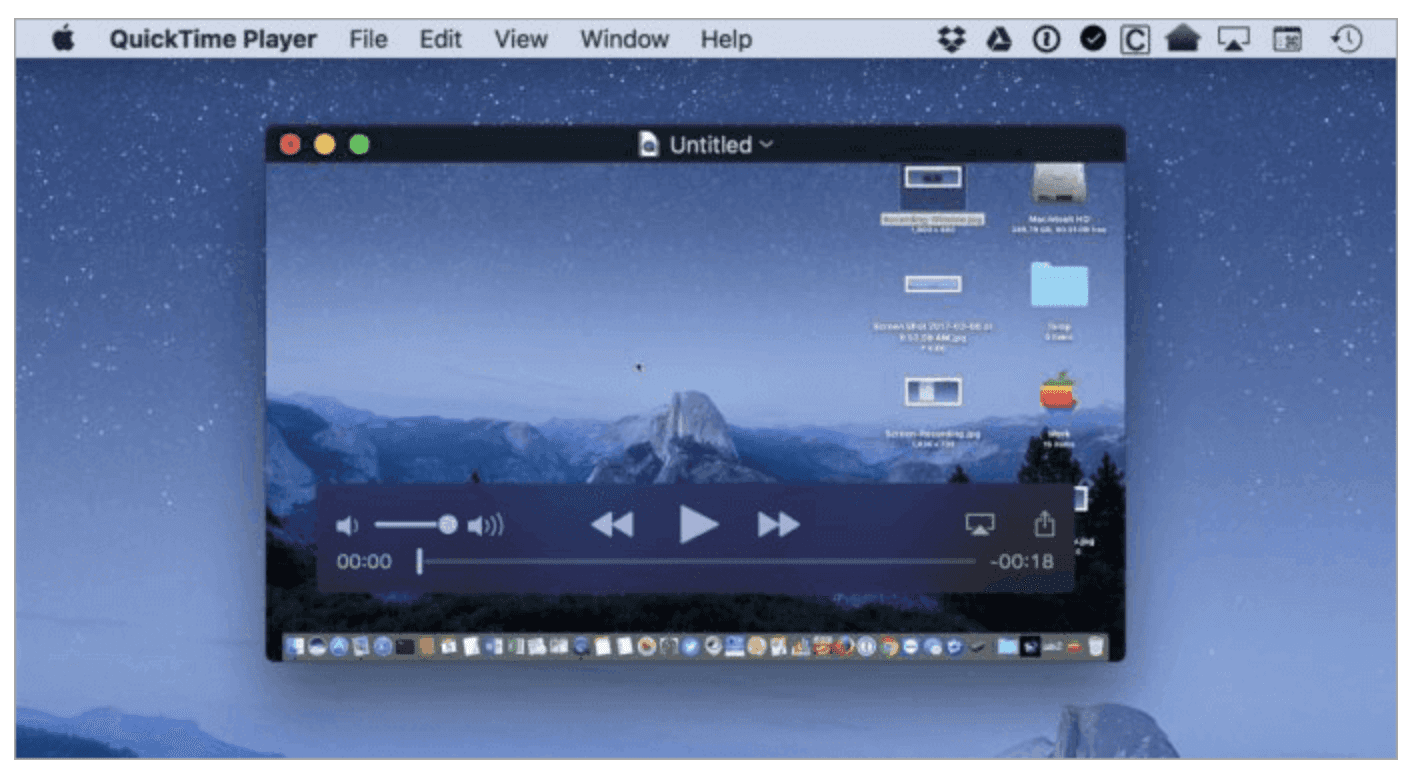
QuickTime Player, Apple's built-in media player, includes screen capture capabilities that make it a convenient option for Mac users. While it lacks the sophisticated features of dedicated screen capture tools, QuickTime offers a straightforward, no-cost solution for basic screen recording. The software integrates seamlessly with macOS, providing a native recording experience without additional downloads or installations. Its simplicity makes it particularly appealing for users who need occasional screen captures without the complexity of professional tools.
Source: Quick Time
Key Features
- Native macOS integration with quick access through system menu
- Basic screen capture functionality
- Audio recording from internal or external sources
- Simple video trim and split capabilities
- Multiple recording modes (full screen, selected portion)
- Built-in preview functionality
- Easy sharing through macOS ecosystem
| Pros | Cons |
|---|---|
| ✓ Free and pre-installed on Mac devices | △ Mac-only availability |
| ✓ Simple, intuitive interface | △ Very limited editing capabilities |
| ✓ Lightweight system impact | △ No collaboration features |
| ✓ No learning curve required | △ Basic export options |
| △ No script generation or article creation |
Camtasia
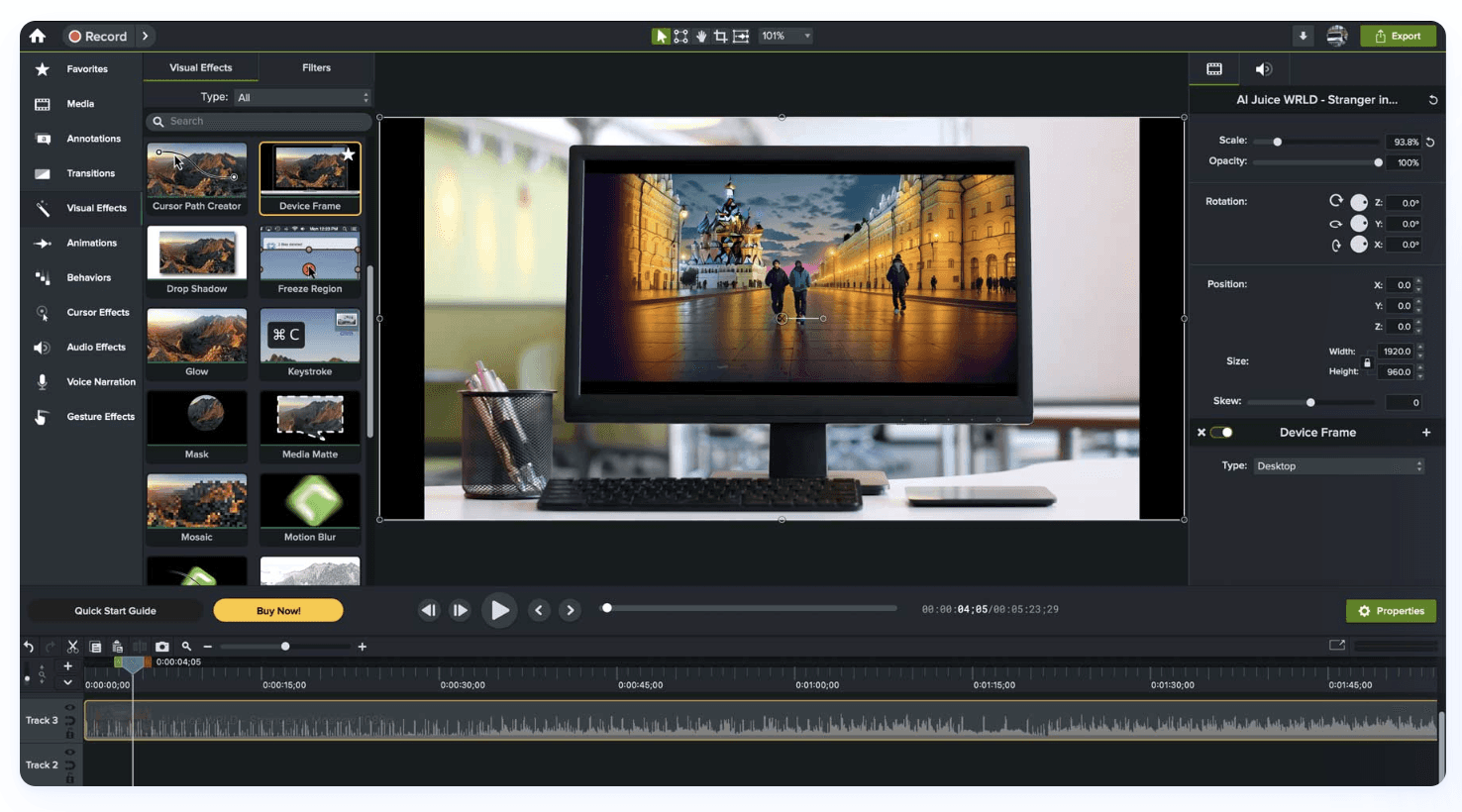
Camtasia is a comprehensive screen capture and video editing platform that caters to users needing advanced editing capabilities. Unlike simpler tools, Camtasia offers a full suite of professional editing features comparable to dedicated video editing software. The platform excels in creating highly polished educational content, software tutorials, and marketing videos. Its powerful editing capabilities come with a steeper learning curve, but the result is more precise control over the final output. The software is particularly popular among content creators and educational institutions requiring sophisticated video production.
Source: Camtasia
Key Features
- Full professional video editing suite, similar to Adobe Premiere
- Extensive library of animations and visual effects
- Advanced audio editing and voice-over capabilities
- Custom transitions and motion graphics
- Video templates for consistent branding
- Mouse click and cursor highlight effects
- screen capture with multiple audio tracks
- Interactive elements like quizzes and hotspots
- Integration with large media asset library
- Specialized tools for software demonstrations
| Pros | Cons |
|---|---|
| ✓ Powerful tools for creating professional training content | △ Significant learning curve requires dedicated training |
| ✓ Ideal for teams dedicated to video content creation | △ Manual voice-over recording and syncing needed |
| ✓ Large community and resource library | △ Requires technical expertise for full feature utilization |
| △ Time-intensive editing process for each video |
Guidde
Guidde specializes in automating the process of creating step-by-step product documentation. While it includes screen capture capabilities, its primary focus is on automatically capturing user actions and converting them into documented workflows. The platform is designed for teams that need to create and maintain large volumes of product documentation, though its video capabilities are more limited compared to dedicated screen capture tools. Guidde operates primarily through a Chrome extension, making it easily accessible but also limiting its functionality to browser-based recordings.
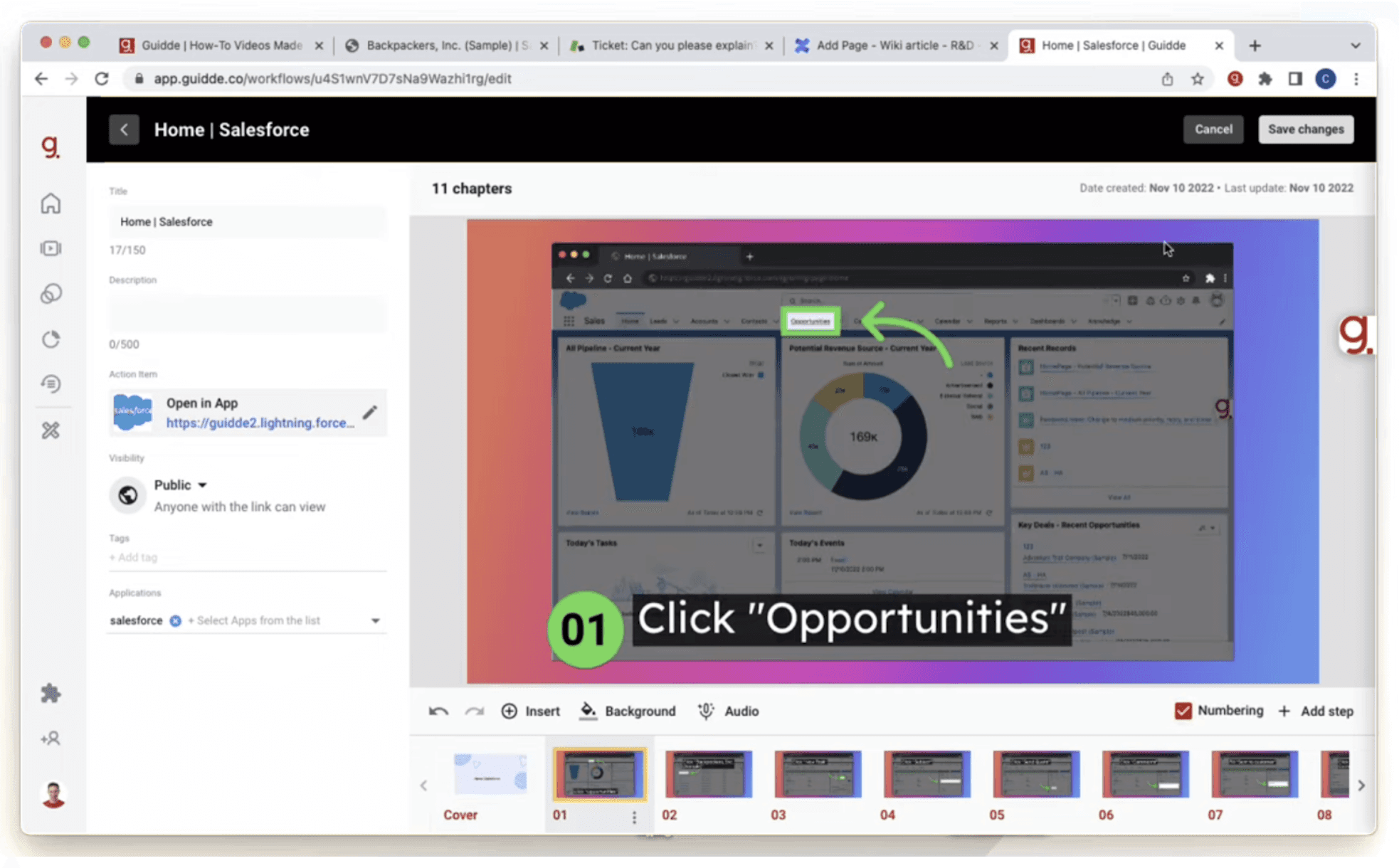
Source: Guidde
Key Features
- Automatic step-by-step guide creation
- Basic screen capture and editing capabilities
- Automated action detection during recording
- Knowledge base creation and hosting
- Team collaboration features
| Pros | Cons |
|---|---|
| ✓ Automatically captures steps of the process | △ Need to manually upload transcripts |
| ✓ Easy to re-order or add steps in the video | △ Limited video editing capabilities |
| ✓ Good for creating how-to documentation | △ Basic customization options |
| △ Voice-overs sound robotic | |
| △ Restricted to Chrome browser for recording | |
| △ Limited export format options |
Screen Studio
Screen Studio carves out a unique niche in the screen capture space with its focus on creating visually stunning software demos with automated motion effects and cursor enhancements. Designed exclusively for Mac users, the tool automatically adds professional-looking zoom effects and smooth transitions to cursor movements, making it particularly popular among UI/UX designers and product teams showcasing interface interactions. While it excels at creating visually appealing recordings with minimal effort, its platform limitations and lack of advanced features like professional voiceovers or branding capabilities make it more suitable for specific use cases rather than comprehensive content creation.
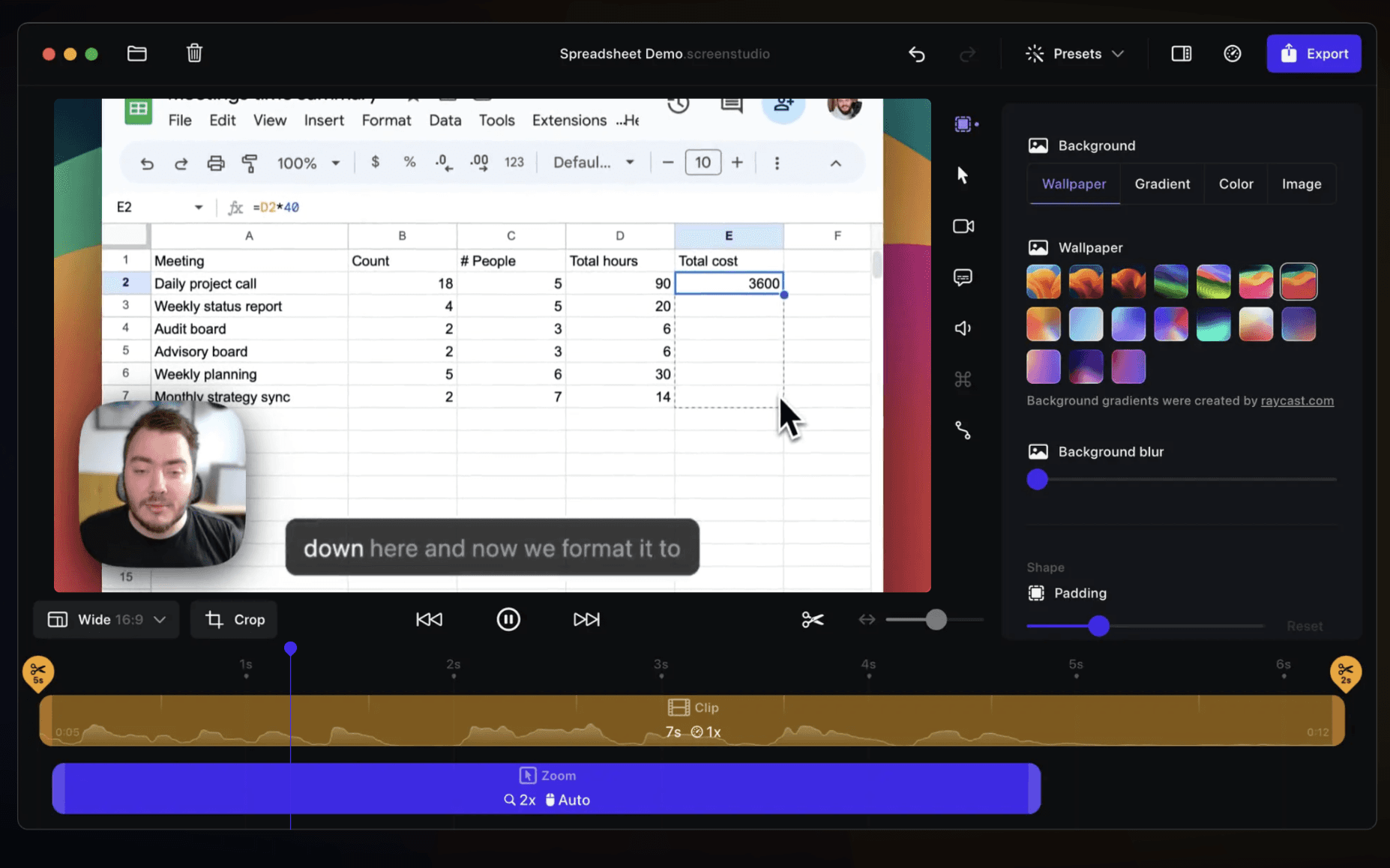
Source: Screen Studio
Key Features
- Automated zoom effects and transitions
- Smart motion smoothing for cursor movements
- Clean background effects for recordings
- High-quality export optimization
- Basic video trimming & editing tools
- Recording presets for quick starts
- Mouse movement enhancement
- Optimized for macOS performance
- Export options for various platforms
| Pros | Cons |
|---|---|
| ✓ Creates visually stunning movement effects automatically | △ Only available for Mac users |
| ✓ High-quality motion-enhanced recordings | △ No professional voice-over capabilities |
| ✓ Quick recording and editing process | △ Cannot add intro/outro or custom branding |
| △ Limited annotation and blur effects | |
| △ No video organization or collaboration features | |
| △ Basic one-time payment model |
Windows Snipping Tool
Windows Snipping Tool remains one of the most widely used screenshot utilities thanks to its simplicity and native Windows integration. Designed primarily for lightweight capture workflows, it allows users to quickly grab screenshots, annotate them, and share them without installing additional software. While it lacks advanced collaboration and recording capabilities, its convenience makes it a default choice for casual and everyday screenshot needs.
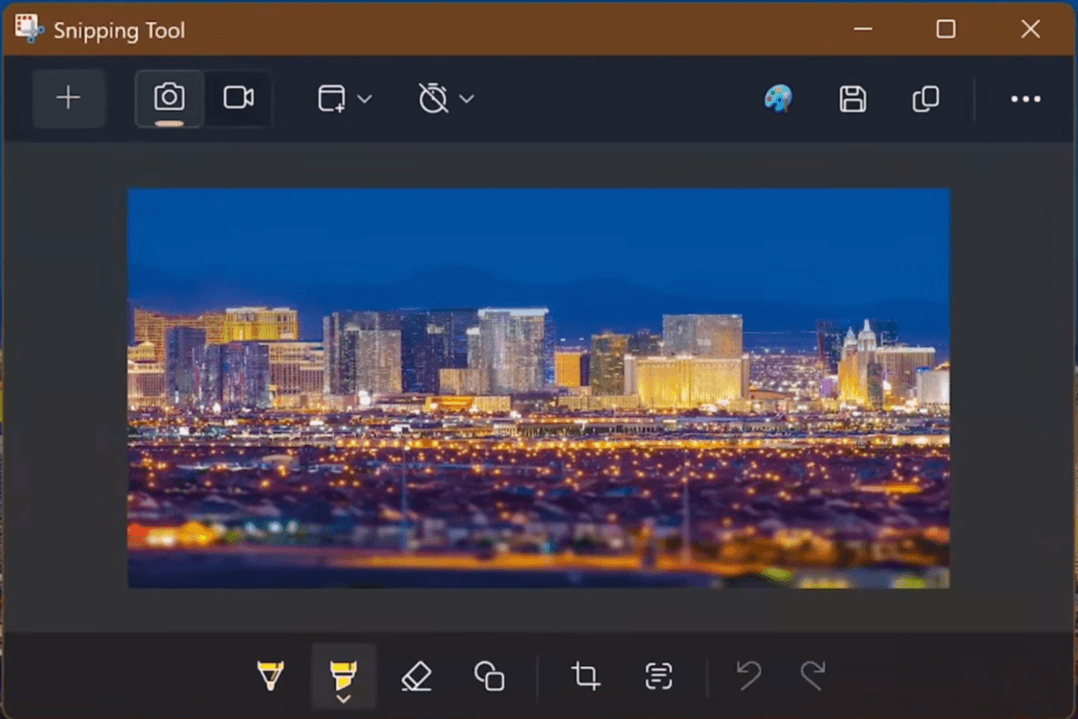
Source: Microsoft
Key Features
- Built-in Windows screenshot capture
- Free-form, rectangular, and full-screen snips
- Basic annotation and highlighting tools
- Delayed screenshot timer
- Clipboard and quick-save functionality
- Lightweight and instantly accessible
| Pros | Cons |
|---|---|
| ✓ Free and pre-installed on Windows | △ Very limited editing capabilities |
| ✓ Extremely simple to use | △ No advanced annotation workflows |
| ✓ Fast access for quick screenshots | △ No cloud sharing or collaboration |
| ✓ Lightweight and minimal system usage | △ No video recording workflows |
| △ No documentation or automation features |
Lightshot
Lightshot focuses on making screenshot capture and sharing as fast as possible. Its lightweight interface allows users to instantly capture selected regions, annotate screenshots, and generate shareable links within seconds. The tool has become especially popular among support teams, students, and remote workers who prioritize speed and simplicity over advanced production workflows.
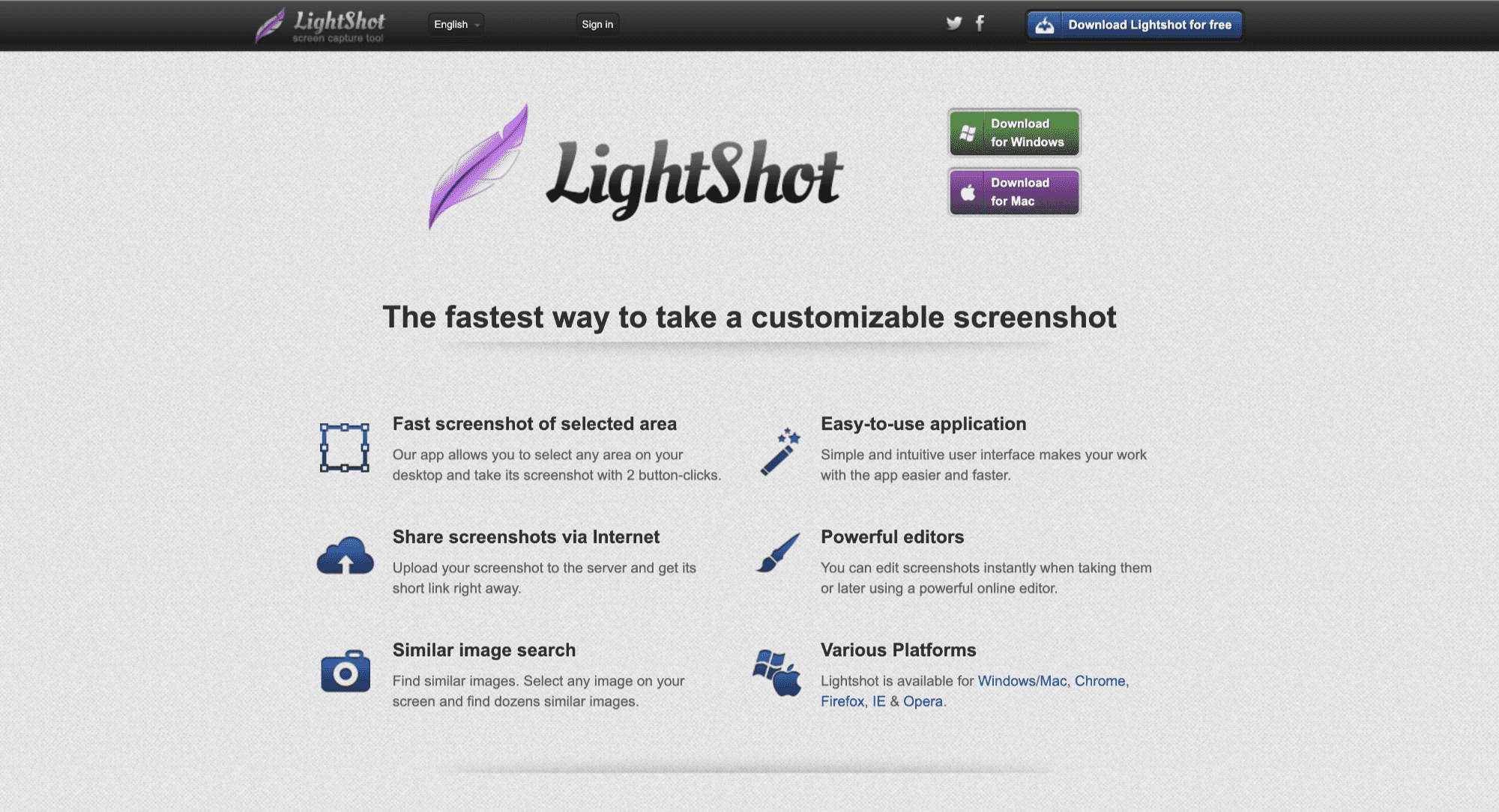
Source: Lightshot
Key Features
- Fast region-based screenshot capture
- Instant annotation tools
- One-click screenshot sharing
- Lightweight desktop application
- Cross-platform support for Windows and Mac
- Quick upload and link generation
| Pros | Cons |
|---|---|
| ✓ Extremely fast capture workflow | △ Limited advanced editing features |
| ✓ Easy screenshot sharing via links | △ No screen recording capabilities |
| ✓ Minimal learning curve | △ Basic organizational features |
| ✓ Lightweight and responsive interface | △ No workflow automation or documentation generation |
| △ Limited enterprise collaboration capabilities |
Greenshot
Greenshot is a long-standing open-source screenshot tool built for productivity-focused workflows. Popular among technical teams and IT professionals, it offers more advanced annotation and export capabilities than many lightweight screenshot utilities while remaining completely free. Its flexibility and customization options make it particularly useful for documentation-heavy workflows.
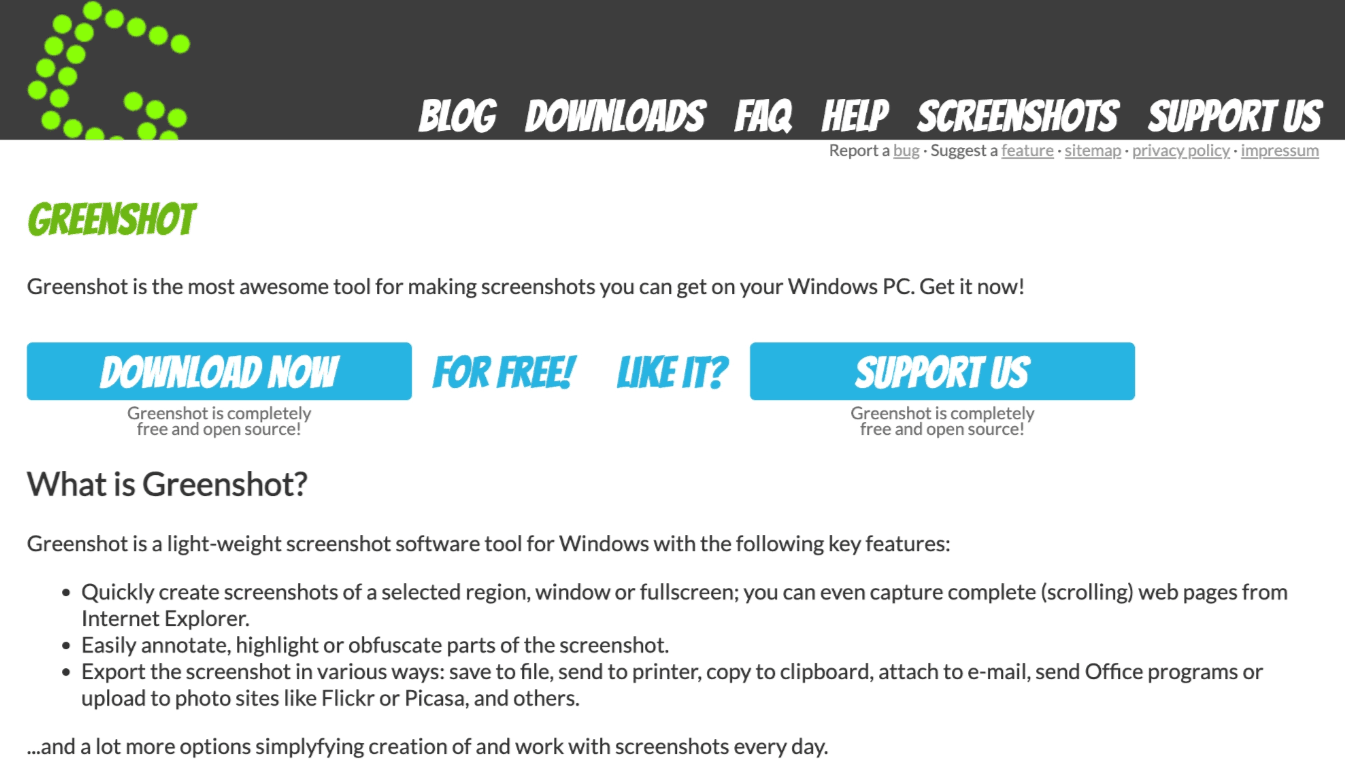
Source: Greenshot
Key Features
- Open-source screenshot capture
- Advanced annotation tools
- Blur and obfuscation effects
- Custom export destinations
- Keyboard shortcut customization
- Multiple screenshot capture modes
| Pros | Cons |
|---|---|
| ✓ Free and open-source | △ Windows-focused experience |
| ✓ Strong annotation and blur tools | △ Outdated interface design |
| ✓ Highly customizable workflows | △ No built-in cloud collaboration |
| ✓ Good for documentation workflows | △ No video recording capabilities |
| ✓ Lightweight system performance | △ Limited modern AI or automation features |
Flameshot
Flameshot is a popular open-source screenshot tool within the Linux ecosystem, known for its advanced annotation controls and developer-friendly workflow. Unlike basic screenshot utilities, Flameshot emphasizes precision editing directly during capture, allowing users to annotate, highlight, blur, and export screenshots quickly without additional editing software.
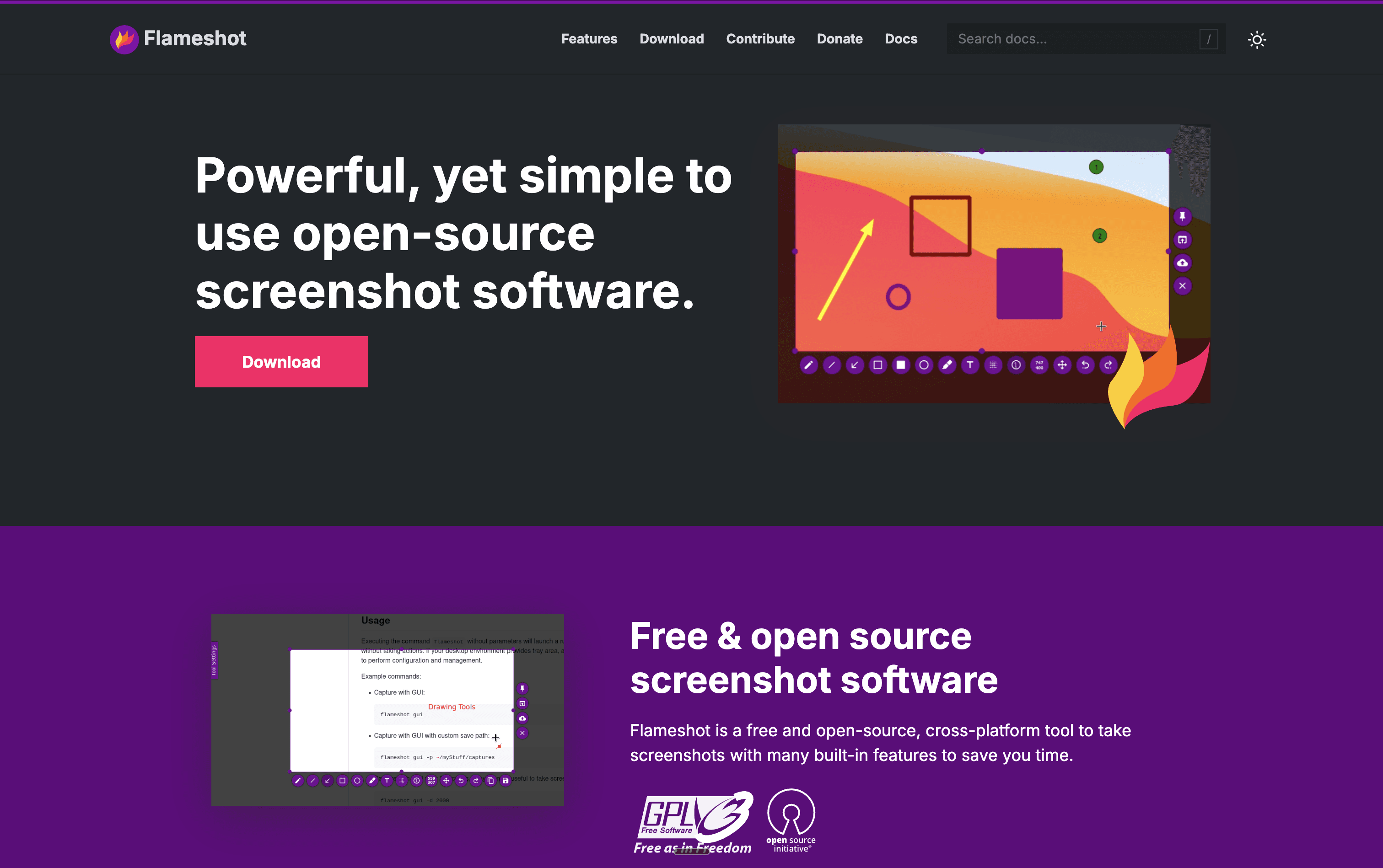
Source: Flameshot
Key Features
- Advanced screenshot annotation tools
- Blur, arrows, highlights, and drawing tools
- Keyboard-driven workflow customization
- Open-source Linux support
- Instant save and export options
- Lightweight and fast interface
| Pros | Cons |
|---|---|
| ✓ Powerful built-in annotation features | △ Primarily optimized for Linux users |
| ✓ Free and open-source | △ No screen recording functionality |
| ✓ Lightweight and fast performance | △ No cloud sharing workflows |
| ✓ Excellent for technical documentation | △ Limited collaboration capabilities |
| ✓ Strong keyboard shortcut customization | △ No AI-powered features or automation |
Screen Recording Software Use Cases & Solutions
Choosing the right screen recording software depends heavily on your specific needs and use cases. Whether you're creating customer training content, documenting product features, or developing sales materials, different teams have unique requirements and challenges. Let's explore how some of these new-age tools address the diverse needs across teams, and what features matter most for each use case.
Customer Education Teams
Creating engaging self-serve learning experiences is crucial for customer success. Teams need efficient ways to produce and maintain educational content that drives product adoption and reduces support loads - all while ensuring consistent quality throughout materials.
Key Challenges:
- Creating consistent, professional training content at scale
- Maintaining up-to-date documentation
- Reducing support ticket volume
- Delivering personalized learning experiences
Solution Features:
- Professional AI voiceovers for engaging tutorials
- One-click branding for consistent learning materials
- Multi-language support for global audiences
- Easy content updates when features change
| Features | Clueso | Loom | Camtasia | Guidde | Screen Studio | Windows Snipping Tool | Lightshot | Greenshot | Flameshot |
|---|---|---|---|---|---|---|---|---|---|
| Professional quality | ✓ | ❌ | ✓ | ✓ | ✓ | ❌ | ❌ | ❌ | ❌ |
| Custom branding | ✓ | ❌ | ✓ | ❌ | ❌ | ❌ | ❌ | ❌ | ❌ |
| Multi-language | ✓ | ❌ | ❌ | ❌ | ❌ | ❌ | ❌ | ❌ | ❌ |
| Automatic article generation | ✓ | ❌ | ❌ | Limited | ❌ | ❌ | ❌ | ❌ | ❌ |
| Easy content updates | ✓ | ❌ | ❌ | ❌ | ❌ | ❌ | ❌ | ❌ | ❌ |
"Keeping our user guides up to date was a constant challenge as our product evolved. Clueso solved this problem, making it possible for us to create high quality user guides and videos in a fraction of the time."
— Tom Marley, Co-founder and CEO, Played
Product Teams
Product teams need to move fast while ensuring their features are well-documented and easily understood by users. Their focus is on reducing time-to-value and accelerating product adoption through clear, effective content.
Key Challenges:
- Documenting features quickly during rapid release cycles
- Creating clear product walkthroughs
- Maintaining documentation alongside product updates
- Supporting users' product journey with relevant content
Solution Features:
- Quick recording and editing tools
- AI help article generation
- Easy content maintenance
- Professional walkthrough creation
| Features | Clueso | Loom | Camtasia | Guidde | Screen Studio | Windows Snipping Tool | Lightshot | Greenshot | Flameshot |
|---|---|---|---|---|---|---|---|---|---|
| Auto-generated help articles | ✓ | ❌ | ❌ | Limited | ❌ | ❌ | ❌ | ❌ | ❌ |
| Easy content updates | ✓ | ❌ | ❌ | Limited | ❌ | ❌ | ❌ | ❌ | ❌ |
| Product walkthroughs | ✓ | Limited | ✓ | ✓ | ✓ | Limited | ❌ | ❌ | ❌ |
"My team at Maltego Technologies has been loving Clueso! We've been able to scale video production significantly. If you're looking to scale your video production for Customer Education or Customer Success, Clueso is worth checking out."
— Joe Ryan, Training Program Manager, Maltego
Learning & Development Teams
Beyond external documentation, organizations face the challenge of internal knowledge transfer. This is where Learning & Development teams play a crucial role. For them, internal training and knowledge transfer require efficient content creation and easy maintenance of training materials.
Key Challenges:
- Creating engaging onboarding content
- Keeping training materials current
- Scaling training across teams
- Documenting complex workflows
Solution Features:
- Easy content updates without re-recording
- Team collaboration tools
- Knowledge base hosting and integration
| Feature | Clueso | Loom | Camtasia | Guidde | Screen Studio | Windows Snipping Tool | Lightshot | Greenshot | Flameshot |
|---|---|---|---|---|---|---|---|---|---|
| Annotations | ✓ | ❌ | ✓ | Limited | ✓ | ❌ | ❌ | ❌ | ❌ |
| Easy updates | ✓ | ❌ | ❌ | Limited | ❌ | ❌ | ❌ | ❌ | ❌ |
| Collaboration | ✓ | ✓ | ❌ | ✓ | ❌ | ❌ | ❌ | ❌ | ❌ |
"Clueso has enabled us to transform our knowledge base with AI-enhanced support articles and elevate the social media outreach with captivating feature videos. Turning a rough recording into a professional video is now a matter of minutes, not hours."
— Baran Ozkan, Co-founder and CEO, Flagright
Marketing Teams
Marketing teams need to communicate product value to the outside world. This means creating compelling product content that resonates across different channels and formats. And that requires a different set of capabilities.
Key Challenges:
- Creating professional product demos
- Producing content for multiple platforms
- Maintaining brand consistency
- Showcasing new features effectively
Solution Features:
- Authentic AI voiceovers
- Multi-format export options
- Professional branding tools
| Feature | Clueso | Loom | Camtasia | Guidde | Screen Studio | Windows Snipping Tool | Lightshot | Greenshot | Flameshot |
|---|---|---|---|---|---|---|---|---|---|
| AI voiceovers | ✓ | ❌ | Only with Avatars | ❌ | ❌ | ❌ | ❌ | ❌ | ❌ |
| Multi-format export | ✓ | ✓ | Limited | Limited | Limited | Limited | ❌ | ❌ | ❌ |
| Custom branding | ✓ | Limited | ✓ | ✓ | ❌ | ❌ | ❌ | ❌ | ❌ |
"Clueso has truly transformed my video editing workflow. The ability to localize the voice to match specific markets, such as using an American voice for an American audience, adds a level of customization and authenticity that sets my content apart."
— Disha Munoth, Lead – Product Operations, Spendflo
Sales Teams
The final piece of the puzzle is sales enablement. Sales teams require tools to create personalized demos and enablement content that drives conversions. This is where screen recording tools help them create persuasive customer communications.
Key Challenges:
- Creating customized sales demos
- Addressing specific customer needs
- Maintaining consistent messaging
- Quick turnaround for prospect requests
Solution Features:
- Quick demo creation tools
- Professional voiceovers
- Sensitive information handling
- Easy sharing
| Feature | Clueso | Loom | Camtasia | Guidde | Screen Studio | Windows Snipping Tool | Lightshot | Greenshot | Flameshot |
|---|---|---|---|---|---|---|---|---|---|
| Sales demo creation | ✓ | ✓ | ✓ | ✓ | ✓ | ✓ | ❌ | ❌ | ❌ |
| Zoom and Blur | ✓ | ❌ | ✓ | ✓ | ✓ | ❌ | ❌ | ❌ | ❌ |
| View-only sharing links | ✓ | ✓ | ❌ | ✓ | ✓ | ❌ | ❌ | ❌ | ❌ |
"We tried several tools to create product demos and it always took us a lot of time to record, edit and make them professional. Clueso cut down our product demo videos from few hours to few minutes and now our entire team is using Clueso to record demo videos."
— Sachin Jain, Co-founder and CEO, Requestly
Screen Recording Tips: Best Practices for Professional Results
Once you’re ready and armed with the right tool, follow these handy guidelines to ensure you’re creating impressive screen recording videos:
Before Recording
Preparation
- Define clear objectives for your video
- Create a basic outline of what your video will cover
- Set up a clean, distraction-free desktop
- Close unnecessary applications
- Turn off notifications
- Prepare sample data or scenarios if needed
Technical Setup
- Check your microphone quality
- Ensure proper screen resolution (recommended: 1920x1080)
- Test your recording tool settings
- Set up proper lighting if using webcam
- Create a quiet recording environment
During Recording
Content Delivery
- Maintain a steady, natural pace
- Speak clearly and confidently
- Keep explanations concise
- Focus on one concept at a time
- Use natural transitions between steps
Visual Quality
- Move your mouse purposefully and smoothly
- Highlight important areas
- Use keyboard shortcuts to avoid messy navigation
- Keep the cursor visible but not distracting
- Demonstrate actions at a followable pace
After Recording
Editing
- Add helpful annotations and callouts
- Include clear chapter markers
- Optimize audio quality
- Add professional branding elements
Enhancement
- Include relevant timestamps
- Add captions for accessibility
- Optimize file size for easy sharing
- Test playback on different devices
- Review for clarity and accuracy
Organization
- Use clear, descriptive titles
- Store in an organized content library
- Track versions and updates
- Back up your original recordings
Common Mistakes to Avoid
- Recording without a plan
- Moving too quickly through steps
- Using unclear or informal language or taking long pauses [if you’re using Clueso, you don’t have to worry about this!]
- Skipping the review process
These screen capture video best practices help ensure your screen recordings are professional, effective, and valuable for your audience. Remember: good preparation and clear organization are as important as the recording itself.
Choosing the Right Screen Capture Software
Modern teams increasingly need more than isolated screenshots or simple recordings. They need workflows that combine videos, GIFs, annotations, screenshots, and documentation into a single scalable process. That’s where AI-powered platforms like Clueso take a different approach.
Instead of treating screenshots, recordings, and documentation as separate workflows, Clueso helps teams transform a single screen recording into polished AI-narrated videos, annotated screenshots, GIF walkthroughs, and structured documentation automatically.
As you evaluate screen capture tools, focus less on finding the tool with the longest feature list and more on identifying the workflow your team actually needs to support. The right solution should reduce manual effort, improve communication clarity, and make it easier for teams to create professional content consistently at scale.
Recording Software FAQ: Everything You Need to Know
General
What is screen recording software?
Screen recording software allows you to capture your computer screen activity along with audio narration. Modern solutions include features like AI voiceovers, automatic article generation, and professional editing tools to create polished content for training, documentation, and marketing.
What is the difference between screen capture and screen recording software?
Screen capture software takes still screenshots, often with annotation tools. Screen recording software captures video of your screen. Some tools like Clueso do both — recording video and automatically extracting screenshots for documentation.
How much does screen recording software cost?
Pricing varies significantly:
- Basic tools: Free to $20/month
- Professional solutions: $50-250/month
- Enterprise platforms: Custom pricing based on features and users Most professional tools offer free trials so you can test their features before committing.
What is the best free screen capture software?
Windows Snipping Tool (built-in), Mac Screenshot (built-in), Lightshot, Greenshot, and Flameshot are free. For professional annotations and cloud sharing, CleanShot X and Snagit are paid but popular.
Do I need technical expertise to use screen recording software?
While traditional tools required video editing experience, modern AI-powered solutions like Clueso are designed for ease of use. Most features are automated, allowing anyone to create professional content without technical expertise.
What screen capture software is best for creating documentation?
Clueso automatically captures and organizes screenshots as you record — ideal for step-by-step documentation. Snagit is popular for manual annotation. Scribe auto-generates docs from screen capture with numbered steps.
Features & Capabilities
What's the difference between basic and professional screen recording tools?
Basic tools offer simple recording and basic editing, while professional tools include:
- AI-powered features (voiceovers, script generation)
- Professional editing capabilities
- Multi-format content creation
- Team collaboration features
- Enterprise security features
Can I edit my recordings after they're done?
Yes, most professional tools offer editing capabilities. Advanced solutions allow you to:
- Update voiceovers without re-recording
- Add or modify annotations
- Edit specific sections
- Enhance video quality
- Add branding elements
How do I choose the right screen recording software?
Consider these key factors:
- Your primary use case (training, documentation, marketing)
- Required features (AI capabilities, editing tools, collaboration)
- Team size and collaboration needs
- Budget and ROI requirements
- Integration requirements
Can screen capture software blur sensitive information?
Yes. Most professional tools (Snagit, CleanShot X, Clueso) include blur/redaction tools for hiding passwords, personal data, or confidential content before sharing.
How do I capture a full-page scrolling screenshot?
Tools like CleanShot X, Snagit, and browser extensions like GoFullPage support scrolling capture for long web pages. Standard OS shortcuts only capture the visible screen area.
Technical Questions
What are the minimum system requirements?
Most modern screen recording tools work well on:
- Windows 10 or newer
- macOS 10.14 or newer
- 8GB RAM minimum
- Stable internet connection Specific requirements may vary by platform and features used.
Can I record high-quality audio without a professional microphone?
Yes, AI-powered solutions can enhance audio quality and even generate professional voiceovers, eliminating the need for expensive equipment.
How do I ensure my recordings are secure?
Professional tools offer:
- Enterprise-grade encryption
- Secure cloud storage
- Access controls
- SSO integration
- Compliance features
Content Creation
How long should my screen recordings be?
Best practices recommend:
- Tutorial videos: 2-4 minutes
- Product demos: <4 minutes
- Training modules: Break into 5-7 minute segments Keep content focused and concise for better engagement.
Can I create different types of content from one recording?
Yes, modern tools like Clueso can automatically generate:
- Written documentation
- Step-by-step guides
- Knowledge base articles
- Social media content
— All from a single screen recording!
How do I maintain content when product features change?
Advanced screen recording tools offer:
- Easy content updates without re-recording
- Version control
- Automatic content synchronization
- Batch update capabilities