How to Update Part of a Training Video Without Re-Recording
Update one part of a training video without re-recording it: cut the stale section, record only the replacement, re-match the narration, and fix the joins.
TL;DR
- Short answer: split the video at the start and end of the outdated section, record a replacement for that section only, re-match the narration, and check the two joins before you export over the original.
- Diagnose first. A wrong word, a wrong sentence of narration, a changed screen, and a missing step each have a different smallest fix.
- Most of the effort goes into making the new clip match the old one: same window size, same demo account, same voice.
- Re-record the whole video when the order of steps or the outcome of the task has changed. A patch can't fix a lesson that now teaches the wrong sequence.
- Updating 40 videos after a release is a different job. Start with an audit, covered in how to keep your training video library up to date.
"The navigation menu changed, so I had to update every single video with the new navigation."
Scenarios like these are becoming very common during calls with prospects these days. A simple navigation change like that breaks one click in each video, and everything after the click usually still matches the product.
You don't need to re-record a training video because one screen, one sentence, or one step went out of date. You cut out the stale section, record only the replacement, and match it to the footage on either side. The steps below cover that procedure for a single video, then what to do for each kind of change.
How do you update one part of a training video without re-recording it?
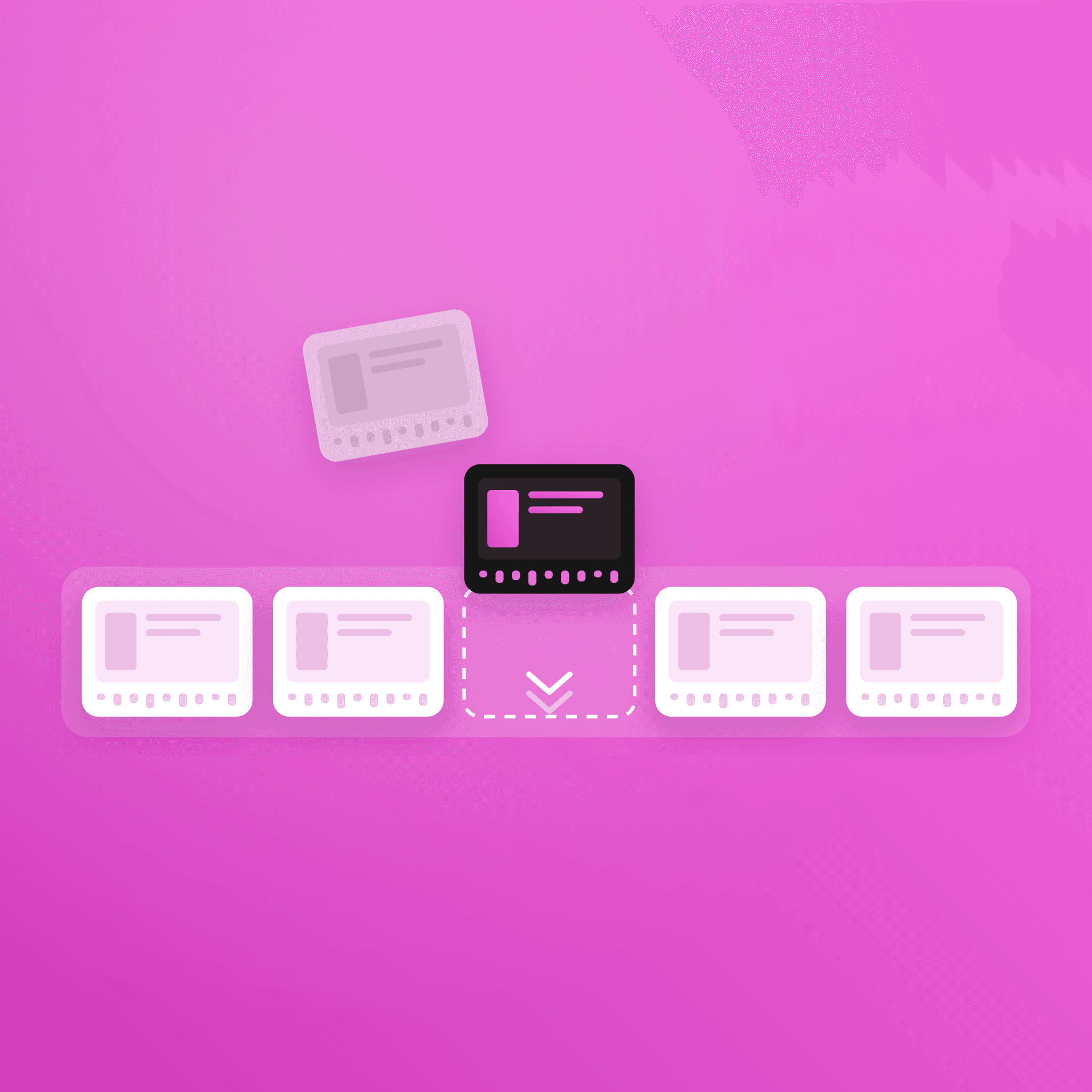
Updating part of a training video means replacing only the section that no longer matches the product and keeping the rest of the recording. You cut the outdated section out at clean boundaries, put a new recording or audio track in its place, and smooth the joins so the viewer can't tell where the patch begins.
The six steps below put that into practice, in the order that keeps you from redoing work.
- Write down what changed in one sentence before you open the editor. "The Export button moved from the toolbar to the Share menu" tells you the fix is one screen. "Export now needs admin approval first" tells you a step is missing. If you can't write the sentence, compare the video against the live product until you can.
- Find the stale section by actions, not by timestamps. Start the cut at the beginning of the step that's wrong, where the narrator says "next" or the cursor comes to rest. Ending a cut mid-click is how a patch ends up visible, because the cursor jumps.
- Split the video at both points and keep the old section on the timeline. Don't delete it yet. You'll want to hear its narration and see its timing while you record the replacement.
- Re-record only that step, in the same setup as the original. Use the same demo account and sample data, the same browser window size and zoom level, and start with the cursor roughly where the previous clip left it. Record a second or two of lead-in on each side so you have room to trim.
- Re-match the narration to the new clip. If the script for that section changed, rewrite those lines and record them in the same voice as the rest of the video. If only the visuals changed, check that the old narration still lines up with the new clicks.
- Watch both joins, then fix the captions and the written guide. Play 5 seconds either side of each cut. Then update the captions for the replaced section and any step-by-step guide or screenshot that shows the old screen, and replace the published file in place so existing links and course assignments keep working.
Step six is the one teams skip. The video gets fixed and the help article sitting next to it keeps showing the old menu for another quarter.
Which fix do you need for each kind of change?
The change you wrote down in step one decides the fix. Most updates fall into one of five shapes, and only one of them needs a new screen recording of more than a single step.
What changed | Smallest fix | What to check afterwards |
|---|---|---|
A label, name, or number on screen or in a caption | Edit the caption or cover the old text with an on-screen text overlay | That the narration doesn't still say the old name |
The narration is wrong but the screen is right | Replace the audio for that section only | That the new line isn't longer than the action it describes |
One screen or button looks different | Re-record that step and splice it in | Window size, zoom, and cursor position at both joins |
A step was added to the workflow | Insert a new clip at the point where the step happens | That the narration before it still leads into it |
The workflow was redesigned | Replace the whole affected section, from the first changed step to the last | Whether the video's opening promise still describes the task |
The first two rows are the cheapest, and teams over-treat them most often. A renamed feature needs a caption edit and one new line of audio, yet it regularly ends up on the list for a full recording session.
The last row is where patching starts to cost more than it saves. If the redesign touches most of the steps, read the section on re-recording the whole video further down before you start cutting.
How do you make the new section match the rest of the video?
Most patches give themselves away at the joins, where the cursor teleports across the screen or the narrator's voice changes halfway through a sentence. A slightly different zoom level usually goes unnoticed.
To match the visuals, record at the same resolution and browser size as the original, use the same account with the same sample data, and close anything that adds a notification badge the old footage didn't have. If the original had zooms or click highlights, apply the same ones to the new clip. A brand template does this for you, if your editor has one.
Matching the voice is harder. When the original narration was a person reading into a microphone, the replacement line has to come from the same person, in a similar room, months later. That's often why an update doesn't happen at all. An AI voiceover removes the problem, because the replacement line comes from the same voice that read every other line. The trade is that you need the full script in text, which is worth having anyway.
How do you update a training video in Clueso without re-recording it?
At Clueso, we build every video from clips rather than one flat file, so the procedure above maps onto the editor directly. You place the playhead at the start of the stale step and split the clip, then split again where the step ends. Splitting a clip also splits its script and any zooms or highlights at the same point, so the replaced section comes away cleanly. From there, Add Clip lets you record the new step without leaving the project, or upload footage you've already captured.
The narration is where it saves the most time. Each clip has its own script, so you edit the sentences for the changed step and regenerate the AI voiceover for that clip only, in the same voice as the rest of the video. If a line lands before the screen catches up, a sync point locks a word in the script to a specific frame.
The same screen recording also produces a step-by-step guide, which takes care of step six. In the article editor, "Rewrite from video" rewrites the guide from the current video transcript, and you can pull the new screenshot straight from a frame of the replacement clip. If an edit goes wrong, version history restores the project as it was before.
Seismic's customer education team describes the same job. In their words, they use Clueso "to create product tutorial videos and update them as the product evolves"
Our Auto Updates add-on goes a step further: give it a fresh capture of the workflow and it regenerates the guide's steps and the video transcript from that capture. You still choose which guides to refresh and when.
When should you re-record the whole video instead?
Re-record from scratch when the lesson itself has changed. The clearest signal is that the steps now happen in a different order, or that finishing the task now takes the user to a screen the video never shows.
Length matters too. The median video exported from Clueso in the last year ran 118 seconds. For a two-minute video, re-recording the whole thing can take less time than three careful patches. For a 20-minute course module, it almost never will.
If you're unsure, time it. Estimate the patch: the minutes to find the section, record it, re-match the audio, and check two joins. Then estimate a full re-record, including the script and the voiceover. Do whichever number is smaller, and write down which one you chose so the next person updating the video knows what's already been patched.
Your next step
Open the one video you already know is wrong. Write the change in a single sentence, find which row of the table it falls into, and time the patch against the clock. If the patch takes under 30 minutes, put the next three stale videos in the same queue before you book any full re-records.
Frequently asked questions
How do you replace the audio in one section of a video?
Split the video at the start and end of the section, mute or delete the original audio for that clip, and add the new recording or AI voiceover in its place. Check that the new line is no longer than the action on screen. If it runs long, trim the words before you touch the video timing.
Which platforms update training videos automatically?
In practice, "automatic" means regenerating a video from a fresh capture of the current product, with someone choosing when that run happens. Clueso's Auto Updates add-on, on the Enterprise plan, regenerates an existing guide and its video transcript from a fresh capture of the current product. For automatic updates to written help content, see how to automatically update help center articles.
How do you maintain and update video documentation at scale?
At scale, most of the work is finding out which videos are wrong. Keep an inventory that links each video to the product area it shows, check it against each release, and sort every flagged video into keep, refresh, or retire. The full process is in how to keep your training video library up to date.
How do you localize a training video into other languages without re-recording the voiceover?
Translate the script rather than re-recording it, then generate the voiceover, captions, and on-screen text in each language from that translated script. A translation glossary keeps product names from being translated. The walkthrough is in how to translate a video.
Ashish Upadhyay
Senior Content Marketing Manager
Ashish is a Senior Content Marketing Manager at Clueso with 7+ years of experience across content, product, brand marketing. Now his mission is to help product and customer education teams realize the value of video-based learning. Outside of work, Ashish sketches, sings, plays the guitar, cooks, and does all things LLMs can't yet.