
How to attach a Google Doc to an email
In this article, you'll learn how to attach a Google Doc to an email.
1. Start by navigating to the Share button located in the top toolbar.
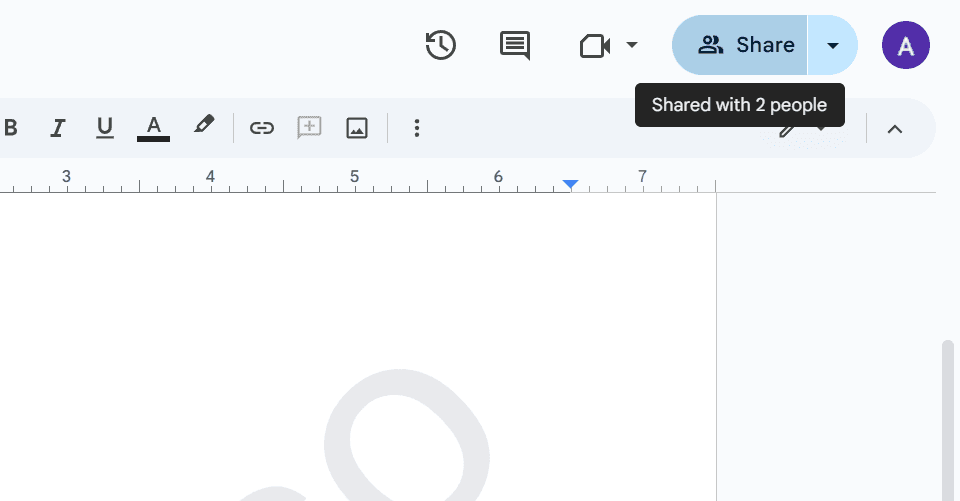
2. A pop-up menu will appear. Here, you have two options:
- Mail the Google Doc directly to the recipient.
- Use the Copy Link button to copy the Google Doc link and attach it in the email.
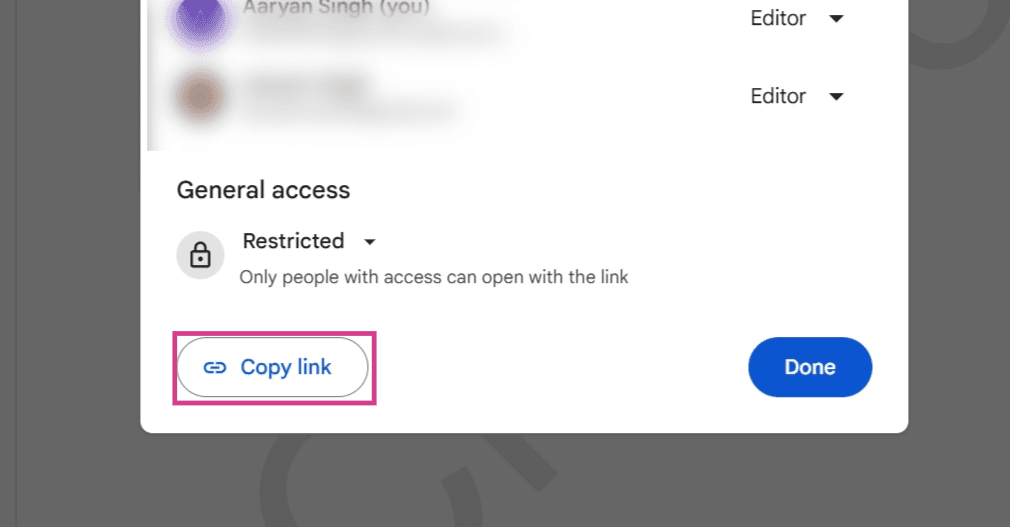
And that's it! You've successfully attached a Google Doc to an email.
FAQs
1. Can I send the Google Doc to multiple recipients at once?
Yes, you can add multiple email addresses separated by commas in the recipient field.
2. What happens when I share a Google Doc?
When you share a Google Doc, the recipient gets an email with a link to access the document.
3. Can I control what others do with my Google Doc?
Yes, when you share a Google Doc, you can set permissions to control whether the recipient can view, comment on, or edit the document.