
Perplexity effort control
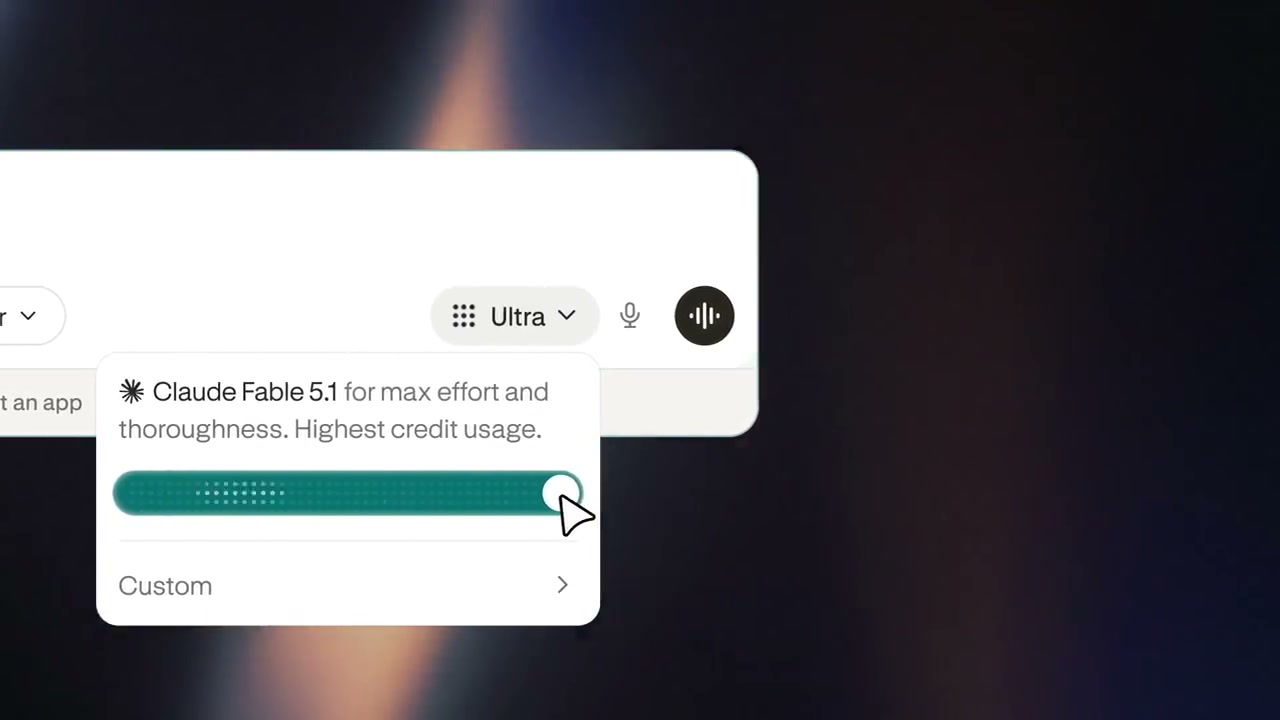
A silent 11-second feature clip that opens on the Perplexity glyph over dark bokeh, zooms into the search bar to drag an effort slider from Light through High to Ultra, and closes on the wordmark.
By Perplexity
A prompt to start from
Paste it into Clueso or any MCP client to recreate this video. The link to it comes with the copy.
Create a short, silent product feature showcase video approximately 10–15 seconds long. Open on a dark, moody abstract background with warm light-streak bokeh effects, then display a white rounded UI panel showing a search interface with options including "Computer" mode and a "High" effort toggle. Zoom in to reveal a dropdown menu highlighting "GPT-6 Astra for deep thinking on complex tasks" alongside a green slider bar representing effort control and a "Custom" option. Close with a clean fade to the Perplexity logo in white on a dark background. Use smooth transitions and no text overlays beyond the UI itself.
How it’s put together
One frame per shot, with what is said over it.
 0:00
0:00The Perplexity glyph sits small and white against dark streaks of warm bokeh.
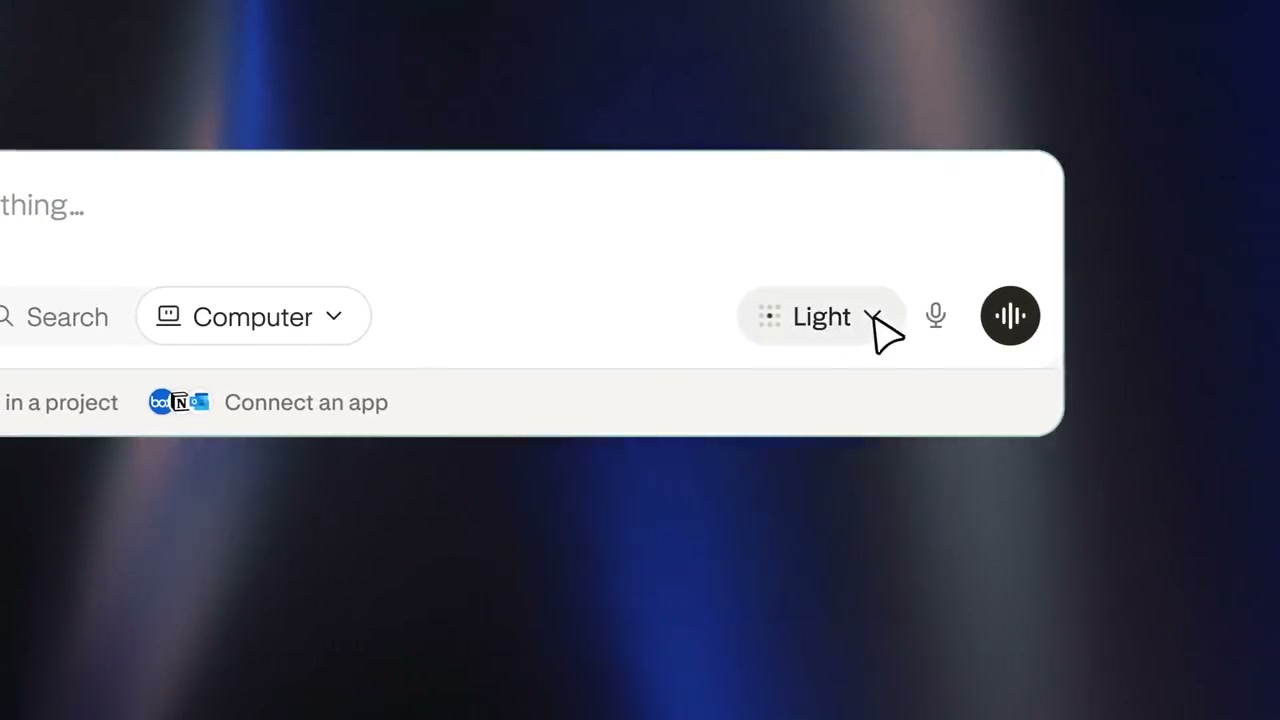 0:03
0:03A white search panel fills the frame with Computer and Light controls in its toolbar.
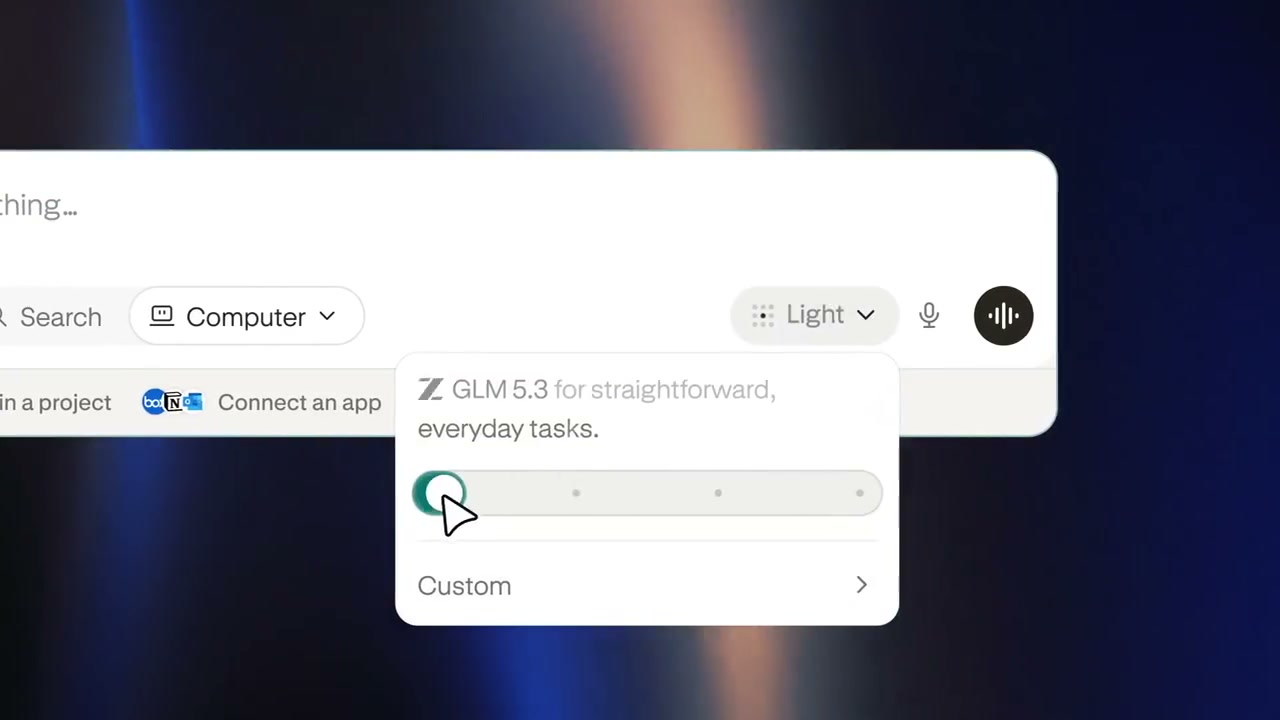 0:04
0:04A dropdown opens on GLM 5.3 with the green slider pulled to the far left.
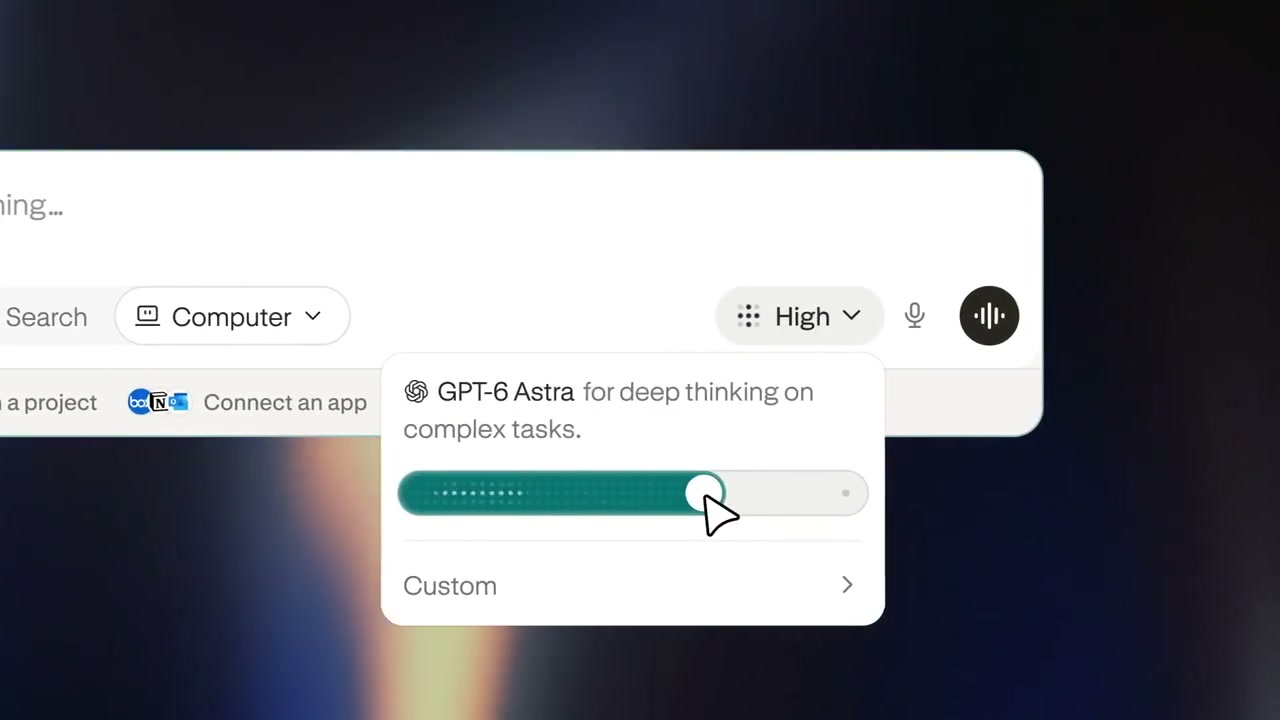 0:06
0:06The slider sits near the right on High, with GPT-6 Astra named in the dropdown.
 0:08
0:08The slider is dragged fully right to Ultra beside a Claude Fable 5.1 row and a Custom option.
 0:10
0:10The Perplexity glyph and wordmark rest in white on the dark bokeh background.
Make one like this
Take the prompt into Clueso and change whatever you need.