How to hide a slide in PowerPoint
In this article, you'll learn how to hide a slide in your PowerPoint presentation. This feature is useful when you want to keep certain information out of your presentation without deleting the slide.
- Start by identifying the slide you want to hide in your PowerPoint presentation.
- Right-click on the desired slide from the left-hand menu.
- From the pop-up menu, select the Hide Slide option.
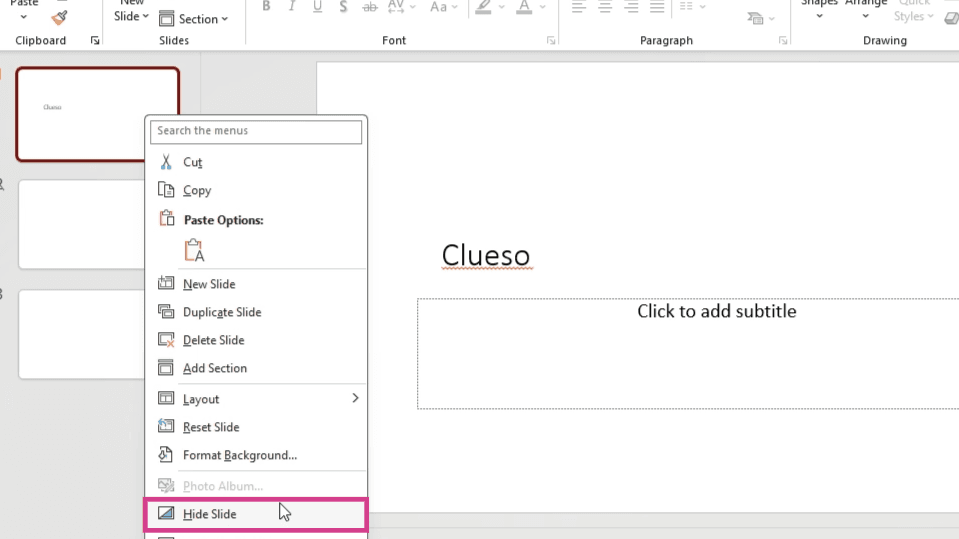
- Your selected slide will now be hidden from your presentation.
Thank you for following this tutorial.
FAQs
1. Can I unhide a slide once it's hidden?
Yes, you can unhide a slide by right-clicking on the hidden slide and selecting the Hide Slide option again.
2. Does hiding a slide delete it from my presentation?
No, hiding a slide does not delete it. It simply removes it from the slideshow view. You can still see it in your slide deck.
3. Can I hide multiple slides at once?
Yes, you can select multiple slides by holding down the Ctrl key (or Command key on a Mac) while clicking on the slides you want to hide. Then, right-click and select Hide Slide.