
Documentation that keeps upwith the tools you use
Clueso turns a quick screen capture into a polished step-by-step guide, with a screenshot for every step, written in your house style. Use it for any software your teams work in, from SAP and Salesforce to your own product. Pick a reader below to see the same guide rewritten for them.
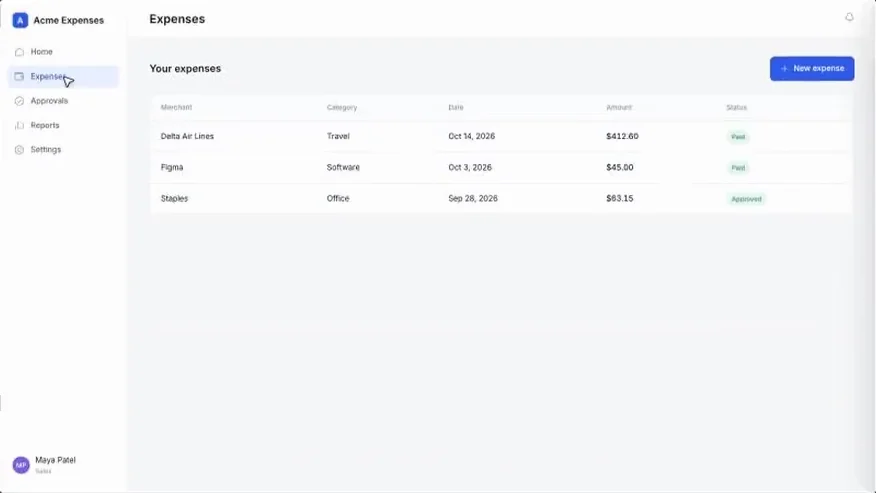
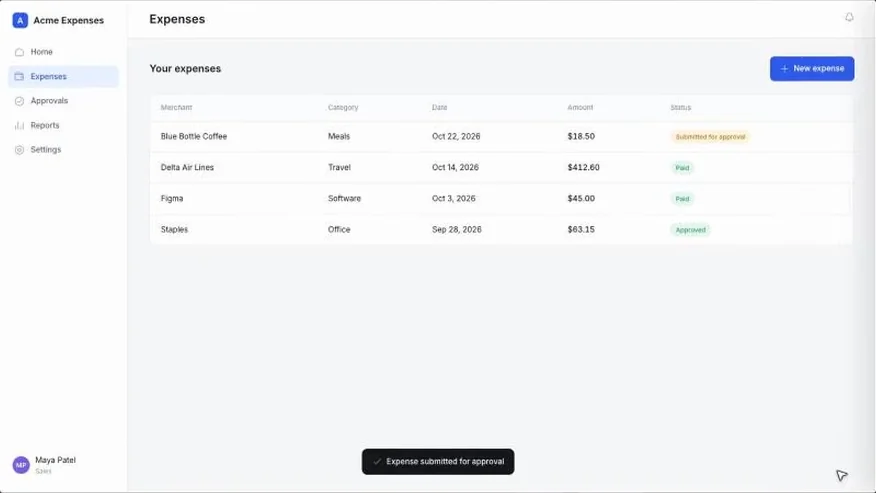
Step 1: Open Expenses from the menu
Open Expenses from the menu on the left. You'll see the expenses you've already submitted.
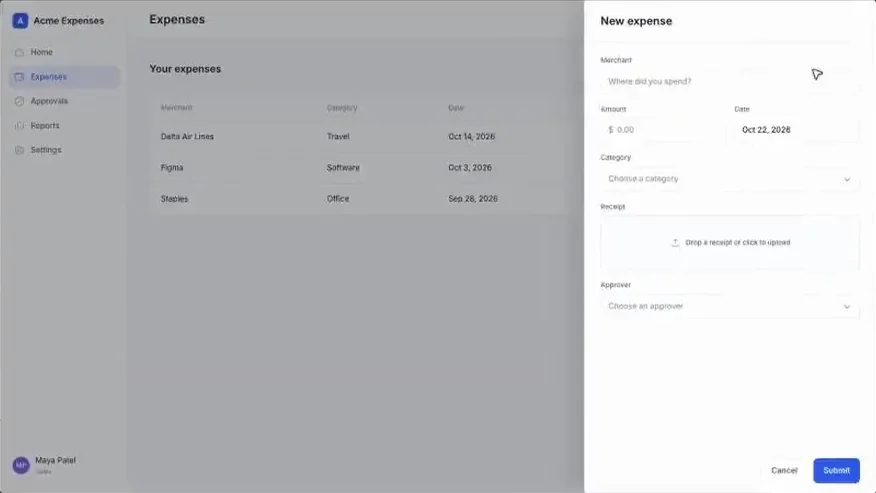
Step 2: Click New expense
Click New expense in the top right. The new expense form opens.
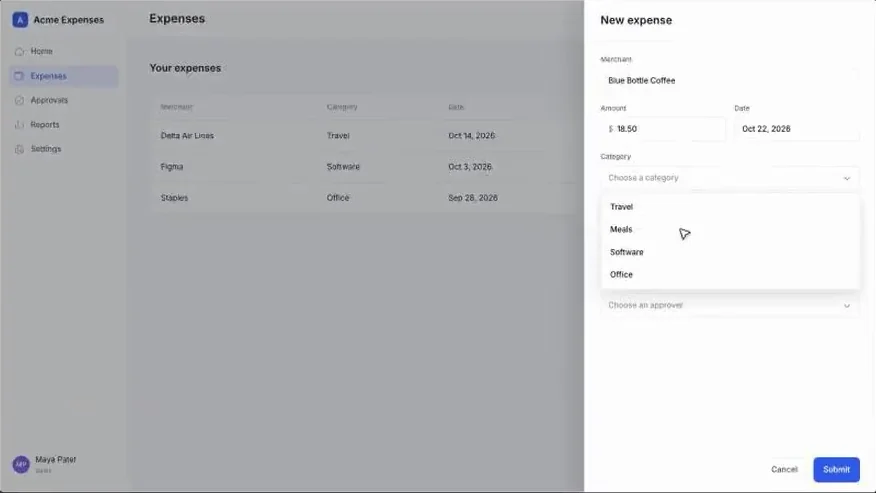
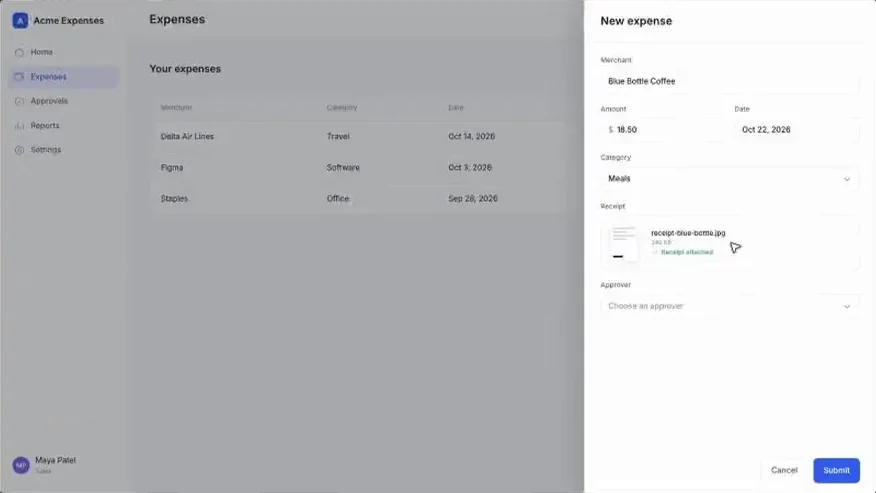
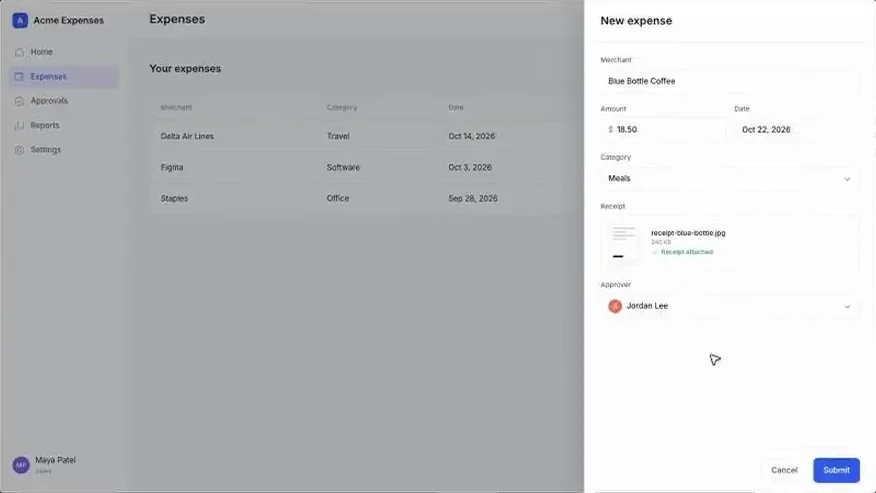
Step 3: Fill in merchant, amount and category
Enter the merchant, the amount and a category. In this example: Blue Bottle Coffee, $18.50, Meals.
Welcome! I'm Clueso AI. I can help you quickly turn your screen recording into a clear, polished article.
- Rewrite based on the video transcript
- Turn screenshots into GIFs
- Add headings or split long blocks into steps
- Translate into other languages
Record the task once. Clueso writes the guide.
Every click becomes a step with its own screenshot, zoomed in on the part that matters.
01Record
Do the task with the Chrome extension, or upload a video, a deck, or a Teams or Zoom call where an expert walks through it.
02Generate
Clueso turns your clicks and narration into numbered steps, puts each one beside its screenshot, and follows your house style.
03Edit
Fix any word or screenshot by hand, or ask Clueso AI to shorten a step, split a long one, or rewrite the whole guide as an SOP.
04Share
Export Word, PDF, HTML, or Markdown for your help center, intranet, or LMS, send a password-protected link, or embed the video.
Every guide comes out safe, clear, and ready to send.
Sensitive data stays out of the screenshots, every step shows the click, and the guide goes out in the language and format each team needs.
Auto-redaction of PII
Pick what to hide before you record, like email addresses, phone numbers, card numbers, or names. On Enterprise, Magic Blur finds them and blurs them on screen as you go, so the video and every screenshot in the guide come out redacted.
Crop, mark up, or animate any screenshot
Crop to the button that matters, add an arrow, or blur a name. Turn a step's screenshot into a short GIF from the video, and when a screen changes, swap in a new frame without re-recording.
Translate a guide into 150+ languages
Pick a language and Clueso translates the written steps and the video's voiceover together, so both versions match. On Enterprise, a glossary keeps product names and button labels as they appear on screen.
On-brand templated documents
On Solo and up, one writing prompt sets your tone, terms, and structure, so every guide stays consistent, whoever records it.
Multiple export options
Word, PDF, HTML, Markdown, or rich text for Zendesk and Intercom, plus a view-only link, or an embed for the video.
Auto-updated with Clueso Agents
Version history keeps every earlier version. On Enterprise, the Auto-update Agent refreshes guides when your product, Jira, Linear, or GitHub changes.
Twelve kinds of documentation. One place to make them.
Hover a document to see its shape. Click one for its inputs, exports, and the teams that use it.
Product documentation
Help articlesHow-to articles with a screenshot for every step, ready for your help center.User manualsA guide for every feature, in chapters, exported as PDF or added to your help center.Release notesRecord the new feature once and ship the note, the GIF and the help article together.Process documentation
SOPsStandard operating procedures with an owner, a version and numbered steps.Process documentationEnd-to-end processes that cross teams and tools, with every hand-off written down.Work instructionsPhoto-led steps for the shop floor, made from footage of the job being done.