Chapter 03
Writing a Tight Script
The best screen recording videos aren't long-winded tours — they're short, clear, and to the point. Viewers don't want to hear you think out loud or explain every menu item. They want one clear job done quickly. The solution is a short, purposeful script that prioritizes clarity.
Goal: Deliver one clear outcome fast, using a simple, spoken structure.
Here's how to get to that:
3.1 Focus on One Outcome
Before writing anything, define the goal of your video in one sentence: What will the viewer be able to do by the end of this video?
If you try to teach too much, you'll lose everyone. Instead, break big topics into separate videos - one job per video.
3.2 Rules of Spoken Guidance
Use spoken English
Short, punchy sentences. Drop the jargon. If it sounds weird out loud, cut it.Front-load with verbs
Tell people what to do firstDon't make viewers remember vague advice
Give them clear valuesSample storyboard for a how-to or tutorial video (2–4 min)
📋 Storyboard
Use this plug-and-play structure for fast scripting.
Hook (0–5s): Grab attention with the outcome, not the process.
↳Example: "Make clean screen captures that look pro — no fancy gear."
Pre-reqs (5–15s): Mention tools, files, or settings you'll need. Keep it moving.
Steps (core): Teach 3–5 actions.
↳Each should follow a verb → result pattern and last no more than 30–40 seconds.
↳Example: "Drag to crop the recording area."
Result (10s): Show the finished product. Let the viewer see what success looks like.
CTA (5–10s): Close with one clear action:
↳Try a template
↳Watch the next video
↳Read linked docs
You can adapt this framework for walkthroughs, how-tos, bug reports, or internal demos. It forces brevity and clarity, and makes your screen recording videos feel thoughtful without being overproduced.
3.3 Writing AI-Assisted Scripts
Writing a tight, on-brand script can take longer than recording the screen video capture itself. But AI can help you script faster. Instead of spending 45 minutes fiddling with step phrasing and filler lines, you can let AI handle the scaffolding, then you bring the nuance, flow, and flavor.
A common fear is that AI will make scripts bland or cookie-cutter. In reality, AI handles the functional phrasing so you can save your creative energy for the parts that matter. AI helps you:
- Get to a first draft in minutes
- Stay consistent with tone and structure
- Focus on voiceover delivery and visuals, not sentence math
The trick is not just prompting AI to "write a script", it's giving it the right bones to build on. Here are some best practices and templates you can use for this:
i. Workflow for AI script drafting
Outline First
Don't start with a blank page. Sketch the beats: hook → prereqs → 3–5 steps → result → CTA.Prompt with Context
AI needs more than just "make it snappy." It needs the audience, purpose, tools, and constraints. Here's what to include:Generate → critique → regenerate
Ask for 2–3 versions. Read them aloud. Choose the clearest and tighten as needed. Don't be afraid to mix and match lines across drafts.Drop-in prompt template
📝 Prompt template
Use this prompt as a template to create your own.
Prompt: You are writing a 2–4 minute screen-capture tutorial.
↳Audience: [beginner/intermediate]
↳Outcome: [what viewers will achieve]
↳Tools: [recorder/editor/tools]
↳Constraints: short spoken sentences; show 3–5 steps; include exact numbers (UI zoom 125%, bitrate 18–24 Mbps); avoid filler; callouts ≤6 words.
↳Tone: [calm/assured/helpful]; avoid hype.
↳Output: script with timestamps (mm:ss), VO lines, on-screen labels, and chapter titles.
ii. Human quality check
After AI gives you a script, run through it to finesse it further:
Read it out loud. You'll catch robotic phrasing fast.
Trim redundancies. Especially repeated verbs or obvious transitions.
Add one line per step that answers "Why this?"
Say your numbers out loud so viewers don't have to squint. Instead of "UI Zoom: 125%" on screen, say this in voiceover: "Set your UI zoom to one-twenty-five percent."
AI accelerates scriptwriting so that you spend less time sweating commas.
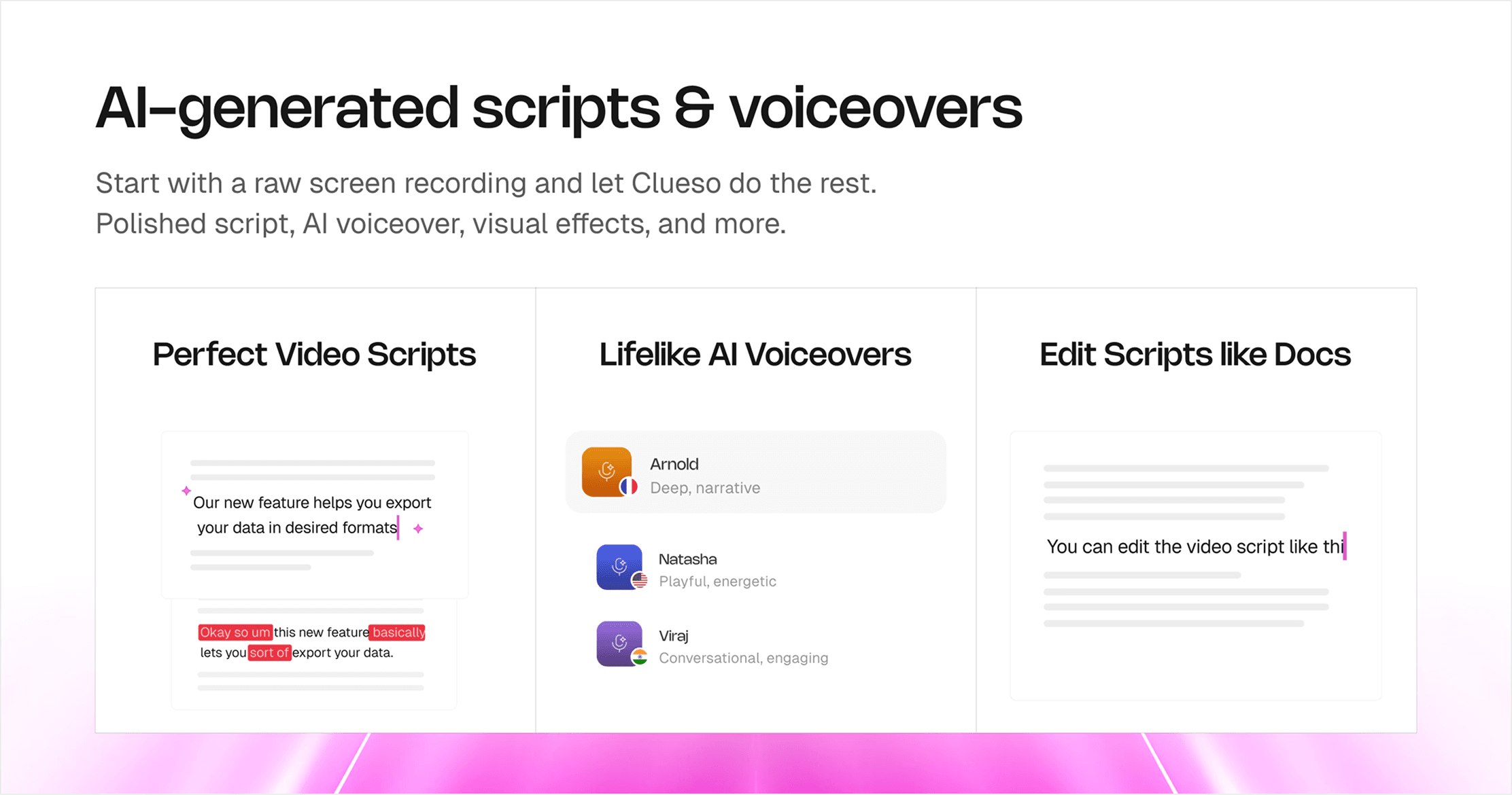
Clueso's AI-powered scripting helps you turn your raw narration into a perfect video script. It fixes pacing, grammar, and clarity while keeping the spirit of your delivery. You'll get an editable transcript of your audio you can refine on the spot without breaking audio–video sync. Clueso also lets you create and save AI prompts presets right inside the tool, so every future script starts in your brand voice.