Chapters

01Introduction
1.1 Let's First Understand What a Tasteful Screen Recording Video Is
02Setting up & Screen-Recording
03Writing a Tight Script
04Recording Voiceovers
05Adding Branding (Fonts, colors, logo)
06Using Picture-in-Picture (PiP)
07Doing the Basic Edit
08Adding Visual Effects
09Visual Framing & Engagement
10Making Videos Accessible
11Using Sound Effects (sparingly)
12Exporting Videos
Introduction

Chapter 09

Visual Framing & Engagement

Once your screen-capture video is recorded, voiced, and edited, the final layer is framing the experience so it's easy to follow, easy to act on, and visually on-brand.

This layer includes your intro and chapter slides, end screens, thumbnails, titles, and CTAs — all the elements that tell your viewer what they're about to learn, where they are, and what to do next.

Goal: Guide attention, reinforce clarity, and drive action through thoughtful visual structure and surface-level design.

Here's how to build it tastefully:

9.1 Intro Slides

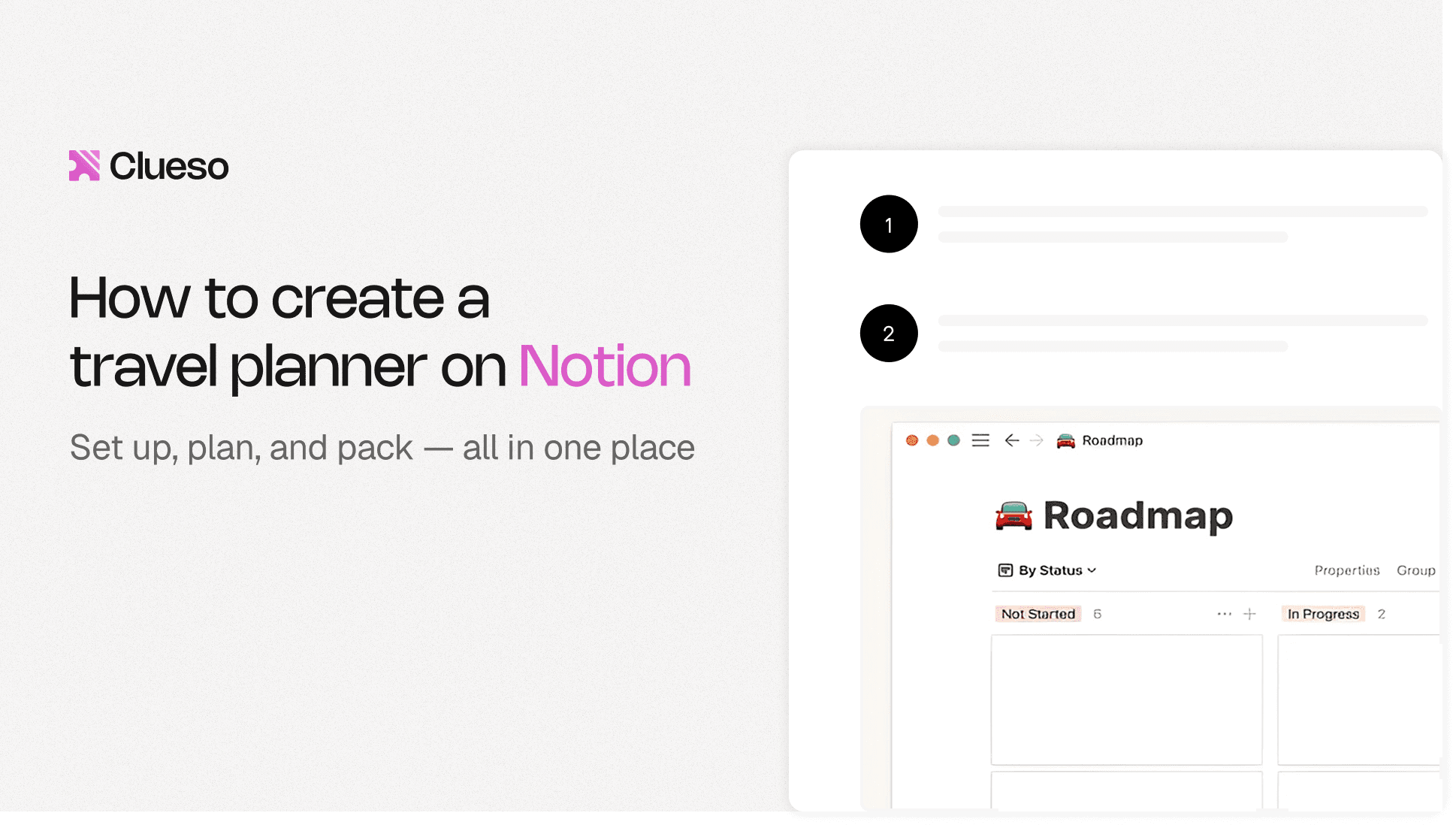
What you're creating: A clean, outcome-focused opening slide — 10 words max on the title, subtle background, soft motion, and high-contrast typography.

In the first few seconds, viewers want to know: "What am I going to get?"

Focus on the outcome

·Example: 'Record crisp 2K screen captures in under 3 minutes.'

Slide elements

·Title: 10 words max
·Logo: small, bottom or corner placement
·Background: subtle — gradients or a blurred product shot
·Avoid: busy UIs and distracting animations

Motion guidelines

·Use a soft 10–15% scale-in or a subtle wipe
·Keep transitions short — a soft wipe with ≤0.3s easing

Accessibility tips

·Font size: 64–80 px minimum at 1080p
·Contrast: high — light text on dark or vice versa
·Safe margins: keep text away from edges (10–12% padding)

Examples

a. Bad Intro Slide Example

What is not working:

  • Distracting animations
  • Different font styles and sizes
  • Lack of alignment
  • Use of long sentences
  • Part of the text is too small to read

b. Good Intro Slide Example
9.2 Chapter Slides

What you're creating: Consistent, rhythmic chapter markers that create breathing room and help viewers navigate — on screen for 0.5–1.5 seconds each.

Chapters keep rhythm and help your viewer breathe between steps. The slides break your video into clean, digestible chunks. They are helpful for both human viewers and algorithmic navigation (e.g., YouTube chapters).

Slide elements

·Text format: numbered step + clear label — e.g., '02 Write a Tight Script'
·Placement: same position across all chapters (e.g., bottom-left)
·Background: light blur or neutral tone for visual separation
·Avoid: extra icons or clutter

Motion guidelines

·Keep intro visible for 5-10 seconds
·Short, consistent transition in/out — quick fade, slide, or wipe ≤0.3s
·No exaggerated zooms or complex transitions

Accessibility tips

·Font size: 60–80 px minimum at 1080p
·Contrast: ensure readability on all backgrounds
·Consistency: do not shuffle layout between chapters

Best practices

·Limit to 3–5 chapters
·Keep each on screen 0.5–1.5 seconds — just long enough to register
·Use same font size, color, and position across slides
·Rounded corners? Stick with one radius
💡Pro Tip

Mirror your chapter titles in your YouTube description timestamps. This enables jump navigation and improves watch time.

Examples

a. Bad Chapter Slide Example

What is not working:

  • Busy background creates visual clutter
  • Lacks consistent layout

b. Good Chapter Slide Example

9.3 Outro Slides

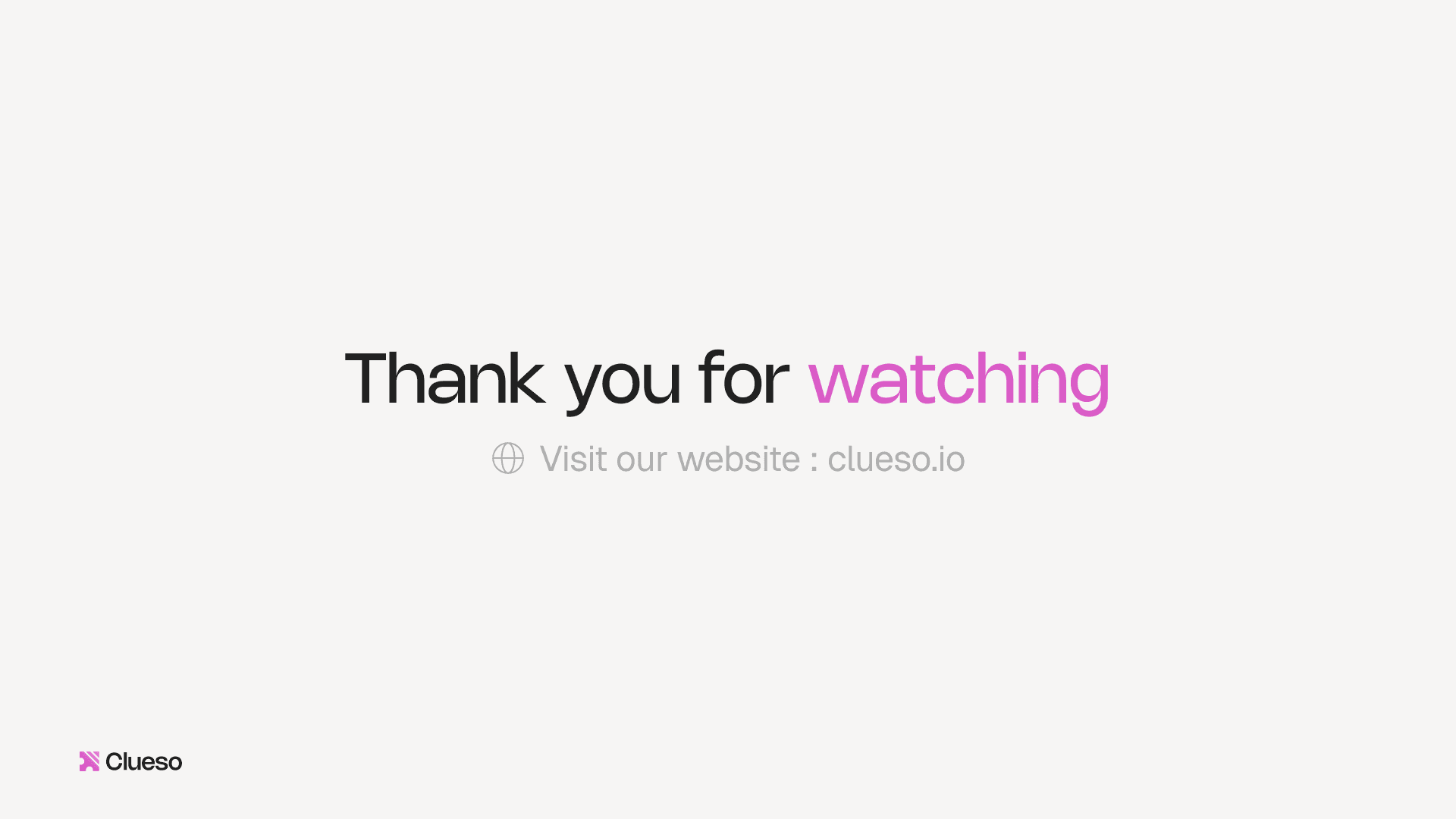
What you're creating: A clean closing slide with one confident CTA — short recap, memorable URL, and enough time on screen to support end screen elements.

The final slide is a soft close plus a next step. Wrap it in one line, then give viewers a clear direction.

Slide elements

·Recap title: clear, confident summary of what they've learned
·Primary CTA: one action only. No 'and/or.' (watch next, try template, download presets, or read docs)
·URL or button: short and memorable — e.g., yourtool.com/record
·Avoid: multiple competing CTAs

Motion guidelines

·Gentle fade-in or slow scale-up
·Keep outro visible for 10–20 seconds to support end screen elements

Accessibility tips

·Font size: ≥64 px at 1080p
·Contrast: high-contrast CTA button or label
·Safe margins: maintain it so that CTAs don't overlap YouTube overlays

End screen layout (optimized for YouTube)

·Left → Next video
·Right → Playlist
·Bottom → Subscribe button or trial link

This layout balances visual weight and guides viewer interaction without overwhelming them.

Examples

a. Bad Outro Slide Example

What is not working:

  • Multiple CTAs competing with one another
  • Website URL too long to remember

b. Good Outro Slide Example
9.4 Adding Video CTAs

What you're creating: A single, tangible CTA that turns the learning moment into an action — watching the next video, trying a template, or downloading presets.

A screen-capture video should give viewers a clear next step. Whether that's trying a feature, downloading a preset, or watching the next video, your CTA is where the learning becomes action.

CTA design guidelines

·Use a high-contrast background (brand primary or dark translucent box)
·Keep copy short: 2–4 words max
·'Try the preset'
·'Watch next video'
·Respect the UI: safe margins, no overlays covering critical interface elements
·Match your slide or label design for visual harmony

Effective CTA types

·Next step: point viewers to the logical sequel — e.g., 'Watch the advanced editing guide next.'
·Try now: link directly to a trial, template, or feature — ideal after showcasing a specific tool or workflow
·Download: offer presets, checklists, or example files — works well for guides or toolkit-style videos

Soft mid-roll CTA

·Place after delivering one clear win (e.g., after a polished recording segment)
·Use a 3–6 second lower-third overlay with voiceover like 'Download this template in the link below.'
·Keep it subtle — no music dips or animated buttons

Hard end CTA

·Show on the outro slide + end screen, make it the only action
·E.g., 'Try it yourself →' or 'Watch the editing tutorial next'

Make it tangible

·Skip vague asks like 'Subscribe for more.' Instead, tie your CTA to a real outcome:
·'Record your first 2K capture with this preset'
·'Download the exact export settings used in this demo'
·'Watch the voiceover tutorial to add clean audio next'

This language feels useful, specific, and trustworthy — which is what your video just delivered.

Use short and memorable URLs

·Use URLs viewers can remember or type — e.g., 'yourtool.com/record' instead of 'yourtool.com/resources/export-settings-tutorial-video'
·Use branded short links where possible (go.brand.co/preset)
·Mirror the link in the pinned comment, video description, and outro screen

Track CTAs consistently

·Use unique URLs or UTM links for each video and platform
·Mirror in the video description, pinned comment, end screen button, and any embedded tooltips or banners — this ensures you catch clicks from any viewer behavior, not just the most engaged ones

9.5 Thumbnails & Titles

What you're creating: A clickable thumbnail and outcome-focused title — tested with 2–3 variants and optimized based on CTR after 1,000–3,000 impressions.

Your thumbnail and title are the front door to your tutorial. If they don't grab attention and communicate value instantly, your carefully edited video may never even get clicked.

Specs

·Aspect ratio: 16:9 with safe margins so text doesn't get cropped
·Text: 3–6 words max, with large, highly readable type
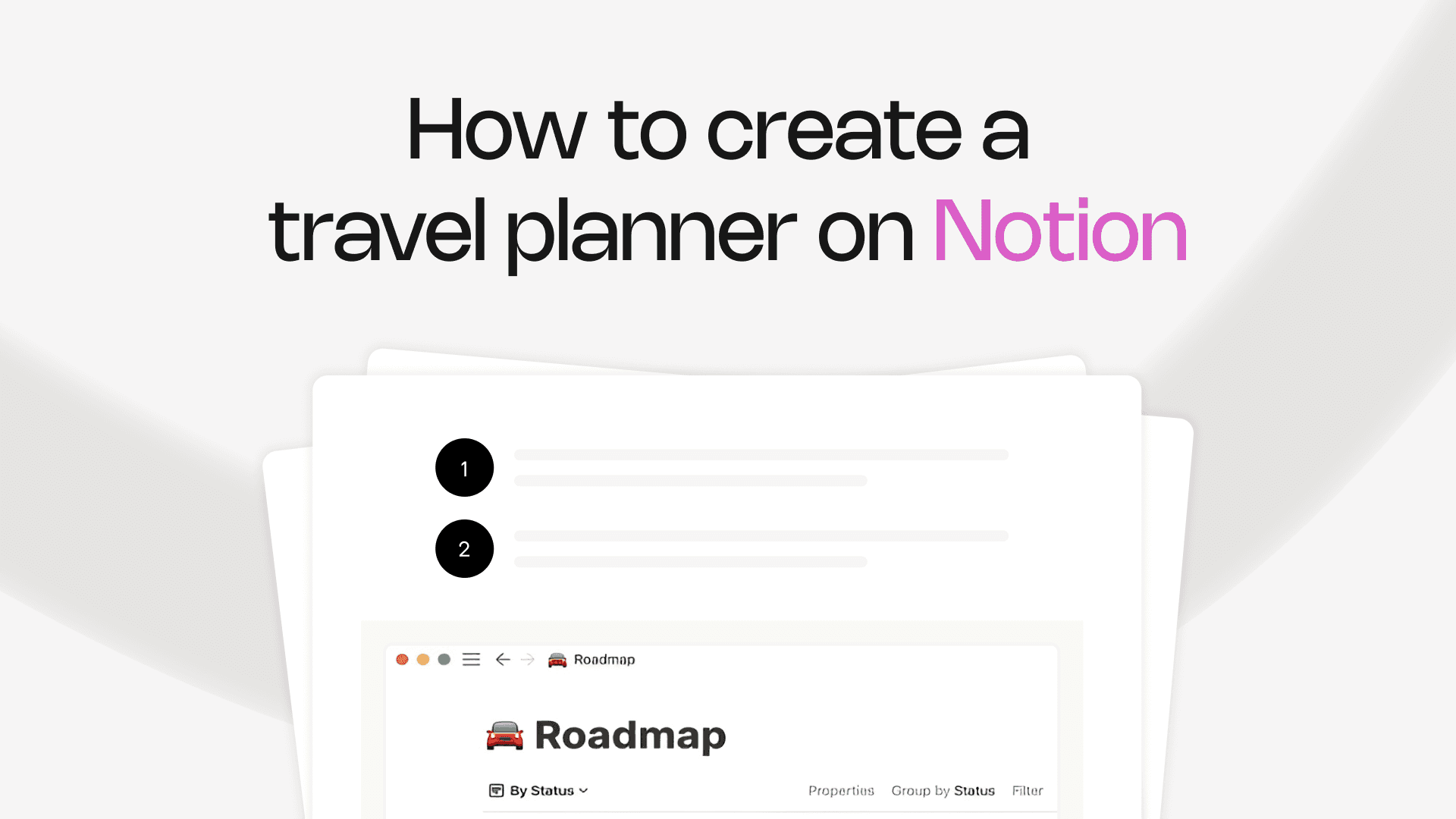
·Focal object: one clear visual — a cursor, crop box, or bold '2K/4K' badge
·Brand system: define a consistent style (typography, colors, strokes, shadows) so your video grid looks unified at a glance

Design guidance

·High-contrast colors pop in crowded feeds
·Use a clean crop of the final result — like a sharp 2K UI with no clutter
·Apply consistent placement for text and logos across your series
·Example: top-left = title, bottom-right = 2K badge or logo

Examples

a. Bad Thumbnail Example

What is not working:

  • Hard to read due to low contrast
  • Lacks proper branding (inconsistent use of fonts)

b. Good Thumbnail Example
Title rules

·Promise an outcome, not a process — 'Record Crisp 2K Screen Captures (No Extra Gear)' beats 'How to Use QuickTime Screen Recording.'
·Use numbers and qualifiers sparingly for punch (e.g., '2K,' 'under 3 min') but don't overload

Workflow: Publish, watch, swap

·Draft 2–3 title/thumbnail variants before launch
·Start with your best-guess combo (A/B/C) based on your audience
·Check CTR after ~1,000–3,000 impressions
·If underperforming, swap title or thumbnail independently to isolate the improvement
GoalGuide attention, reinforce clarity, and drive action through thoughtful visual structure
Intro slide title≤10 words, 64–80 px min
Chapter slides0.5–1.5 s on screen, 3–5 max
Transitions≤0.3s easing
Outrovisible 10–20 s, one CTA only
CTA copy2–4 words, tied to a specific outcome
Thumbnail CTR checkafter 1,000–3,000 impressions
← PreviousAdding Visual Effects
Next →Making Videos Accessible