
Chapter 02
Setting up & Screen-Recording
Every tasteful screen recording video starts with a solid base. If your raw footage is clunky or chaotic, no amount of editing will save it. This is the initial phase where you control the visuals, the audio, and the environment before you ever hit "record." Everything downstream, from pacing to polish, depends on what you do at this stage. Here's everything you need to factor in to get this part right:
Goal: Capture the cleanest possible base because everything downstream depends on this.
2.1 Resolution & Frame Rate
Resolution
Record at the highest your display and tool will allow. Many off-the-shelf recorders max out at 1080p, which can look fuzzy on modern screens. Tools like Clueso support crisp 2K capture, while QuickTime can go all the way to 4K if your monitor supports it.Capture at a 1:1 pixel ratio
Avoid zoom scaling. If you're on a Retina or HiDPI display, use 100% zoom or record from an external 1:1 monitor to avoid blur.Frame Rate
30 fps works for most tutorials. Bump up to 60 fps if you'll be doing fast scrolling, drag-and-drop, or anything with rapid cursor movements.2.2 Canvas Hygiene
Clean your desktop
Use a neutral wallpaper. Hide all icons and files.Silence distractions
Turn on Do Not Disturb, quit Slack, close background tabs, and kill CPU-heavy apps that can cause lag or fan noise.Zoom the UI
Set app or system zoom to 110–125%. This makes text readable on smaller screens without viewers having to squint.Cursor discipline:
2.3 The "Ugly Cursor" Trick
Creators often try to make their cursor as invisible as possible - small, smooth, and fast. In screen captures, that’s a mistake. Viewers can’t follow micro-movements. A better approach to screen video capture is the so-called Ugly Cursor Trick:
Move slower than feels natural — viewers can't follow micro-movements
Pause deliberately before and after clicks
Use a slightly bigger cursor size for easy spotting
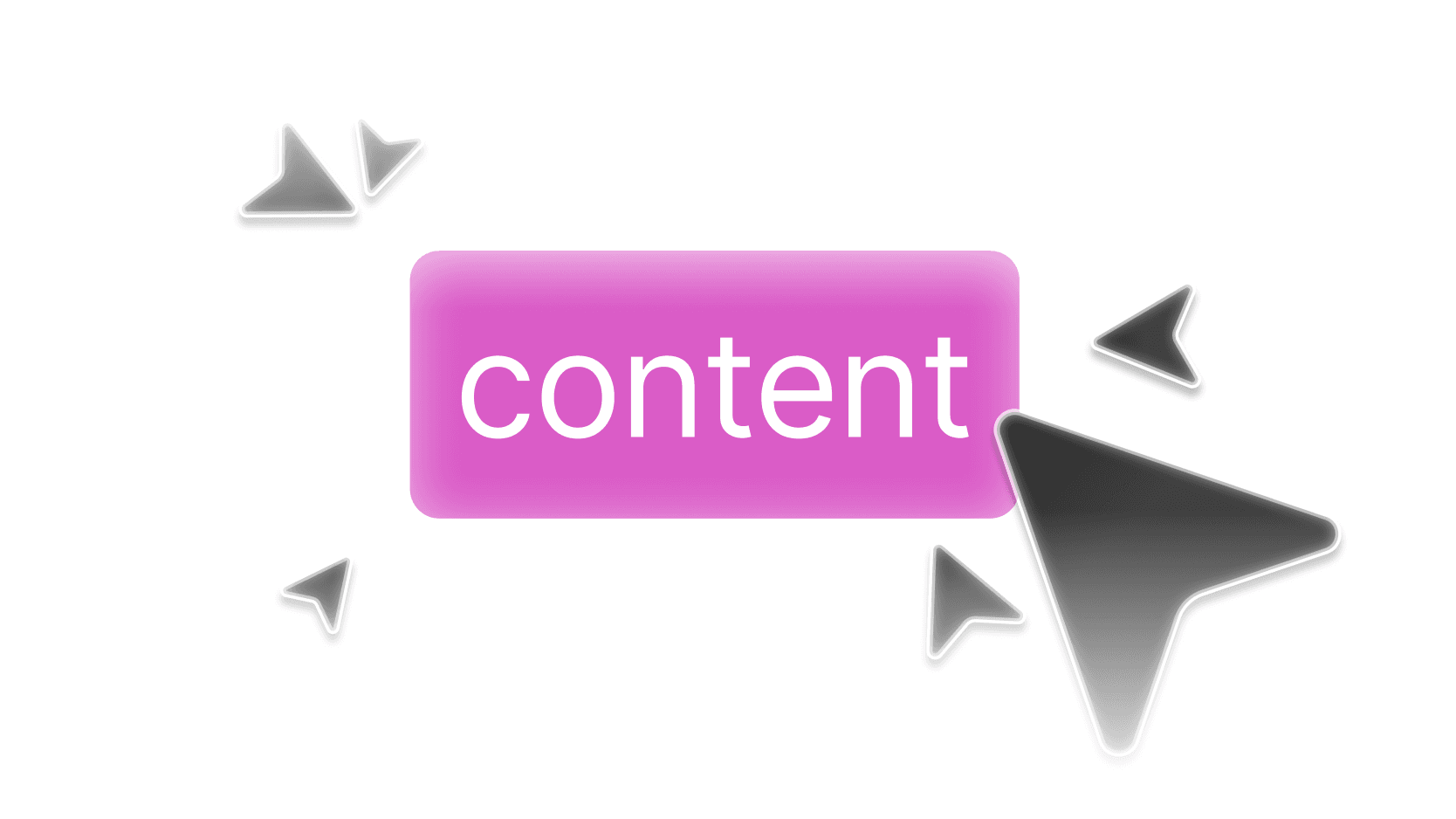
It might feel clunky while recording, but it's far more legible to your viewers; especially on mobile.
With Clueso, you can customize the color of your click highlights to match your brand palette.
2.4 Audio Capture
Split your audio tracks if your tool supports it. Record mic input and system audio separately. This gives you flexibility in post-production to fix levels or reduce background noise.
Mic settings:
If you're not using a proper mic, at least avoid recording from a laptop speaker next to a whirring fan.
Always run a quick 10-second test recording
Talk, click, scroll, then check sync and levels before committing to a full take.2.5 Security & Privacy
Blur or hide any personally identifiable info
Names, emails, customer IDs, API keys.Use demo or staging environments when possible.
Turn off browser extensions that might inject overlays (like password managers or ad blockers). These sneak into more recordings than you'd think.
A clean setup makes editing easier. Besides, nobody wants to learn from a cluttered, distracting, or unsecured video.
