
Chapter 04
Recording Voiceovers
A crisp screen recording with muddy audio kills the experience. Your voiceover is the human anchor of your tutorial, so capturing it cleanly is non-negotiable.
Goal: Ensure audio matches the quality of the visuals — clear, consistent, and pleasant to listen to.
Here's how:
4.1 Mic & Room Setup
What you're creating: A clean audio environment with the right mic, position, and room treatment for clear, reflection-free recordings.
Mic choice
USB dynamic mics like the Shure MV7 or Samson Q2U are excellent for untreated rooms — they naturally reject background noise and don't pick up every echo like cheap condenser micsMic distance
Stay 10–12 cm away, use a pop filter, and speak past the mic — not directly at it — to reduce plosives on harsh "p" and "b" soundsRoom treatment
Hard walls bounce sound — face a closet, hang a blanket, or record in a carpeted room to cut reflections — even DIY treatment makes a huge difference4.2 Performance & Delivery
What you're creating: A natural, well-paced voiceover with deliberate pauses after on-screen actions.
Check for problem sounds
Say a few "p" and "b" words (plosives), and "s" and "sh" words (sibilance). If they distort, adjust your mic angle or distance.
Delivery tips
4.3 Using AI Voiceovers
What you're creating: A tastefully directed AI voiceover — the right voice, varied tone by section, and precise delivery controls for natural pacing.
AI-generated voiceovers have come a long way — natural pacing, expressive tone, even subtle warmth. But tasteful AI voiceovers still takes craftsmanship. The secret lies in how you direct it.
i. Voice selection
Pick a voice that mirrors your brand personality. For most tutorials, that means calm, clear, and neutrally warm.
Avoid voices that sound like:
- Overly polished news anchors
- Cartoon mascots
- Hyper-casual YouTubers
A great AI voice should feel steady, human, and… forgettable in the best way. You want the message to stand out, not the voice itself.
ii. Tone variation
Don't use one flat tone for everything. Vary the delivery style based on what's happening in the screen recording. Here's a simple breakdown:
| Section | Speed | Pitch | Notes |
|---|---|---|---|
| Hook | +5–8% | Slightly ↑ | Adds energy to pull viewers in |
| Steps | Neutral | Neutral | Emphasize action verbs |
| Warnings | −10% | Slightly ↓ | Slower, serious, more pause |
| CTA | Hook-like | Reset ↑ | Crisp, confident close |
This variation keeps the voiceover feeling dynamic and intentional.
iii. Directing the delivery
Most AI voiceover tools support SSML-style (Speech Synthesis Markup Language) controls. It is a standard way to control how text is spoken — adjusting pitch, speed, pauses, emphasis, and pronunciation. While not every tool shows you raw tags, many still offer these controls under simpler names like "Add pause" or "Change pronunciation". Use them:
- Emphasis: Add <emphasis> or bold important verbs and nouns.
- Pauses: Insert <break time="500ms"> after big clicks, UI transitions, or to mark new steps.
- Adjust pitch/speed: maps to SSML's pitch, rate, or volume attributes
- Pronunciation: Add phonetic cues for tricky brand names or keyboard shortcuts.
Example:
- "Clueso" → kloo-zoh
- "Cmd+Shift+5" → Command Shift Five
If your tool doesn't support SSML, break up the text into short, clear sentences in your script so the AI handles pacing naturally.
📌 Upgrade Your Voiceovers with Clueso
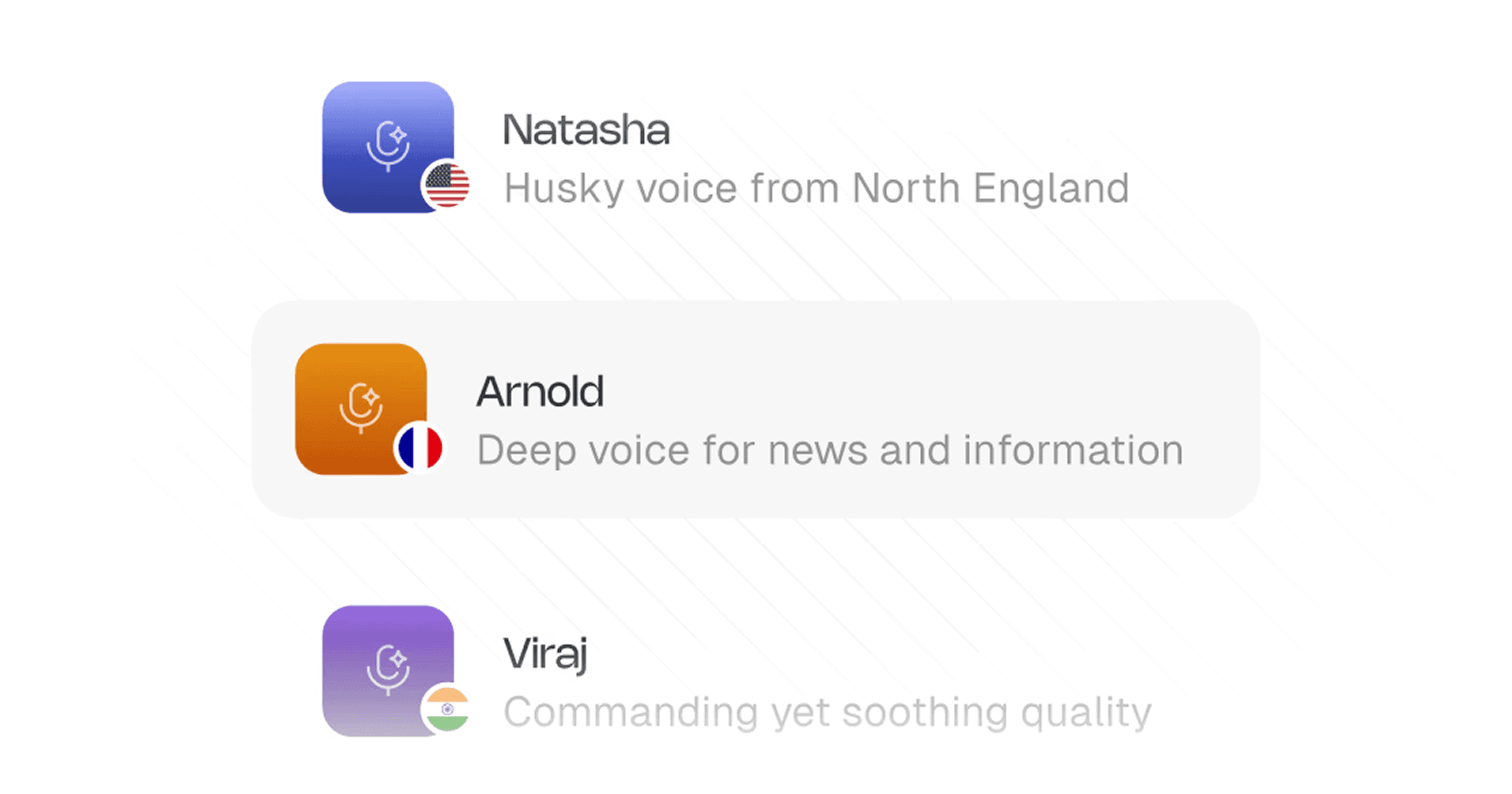
Swap your own narration for professional-grade AI voiceovers in 40+ languages and diverse accents, right inside Clueso. The variety of tone and voice pace gives you options to choose from. You can also train the AI to pronounce tricky words perfectly and never worry about mispronunciations again.
iv. Mixing AI + human voiceovers
Mixing human and AI can work, but don't alternate line-by-line; it's jarring. The trick is consistency within each section:
✅ What works:
- Human VO for intro + result
- AI VO for steps
❌ Avoid:
- Alternating every other sentence or step
- Mixing within the same paragraph
Switching too frequently also confuses viewers, especially in educational content where clarity is top priority.
4.4 Final Quality Checks
What you're creating: A QC pass that catches sibilance, audible breaths, and room tone mismatches before publishing.
Always QC your AI voiceover before publishing:
- Listen through laptop speakers and earbuds, not just system monitors.
Watch out for:
- Harsh sibilance (add a light de-esser to tame harsh "s/sh" sounds.)
- Audible breaths between lines
- Room tone mismatches (if mixing with human VO)
- Use light compression if your AI tool doesn't already apply it
