
Chapter 08
Adding Visual Effects
Once your rough cut is locked, it's time to add visual polish. The rule of thumb: subtle, consistent, purposeful. They guide the eye and create flow without calling attention to themselves.
Goal: Use zooms, highlights, and callouts to guide the eye — subtly, consistently, and only when needed.
8.1 Zooms & Pans
What you're creating: Subtle, anchor-point zooms that draw the viewer's eye to the right element — soft easing, no more than 15%.
Use 5–10% push-ins to emphasize an element — like a button, label, or setting
Avoid zooming in more than 15% unless showing tiny UI (e.g., a tiny gear icon or dropdown)
Anchor zooms to the element of focus, not the dead center of the screen
Add soft ease-ins and outs (120–200 ms) so zooms feel natural, not abrupt
With Custom Zoom in Clueso, you can add subtle, precise zooms that draw the viewer's eye exactly where you want — highlighting buttons, menus, or key actions as needed.

8.2 Highlights
What you're creating: Light, clean visual cues — soft rectangles or semi-transparent masks — that spotlight areas without distracting rings or effects.
Use soft rectangles or semi-transparent masks to spotlight areas
Click highlights
A subtle 200–300 ms pulse at low opacity is enough to signal interaction — avoid exaggerated ripple effects unless part of your brand lookClueso lets you highlight sections of your UI with rectangles and arrows. You can also use the Spotlight feature to fade out the rest of the screen and keep just one element in focus.

8.3 Callouts
What you're creating: On-brand callouts in a single consistent style — positioned outside the focal area, never covering the UI being explained.
Use a single style for all callouts
Match your brand's primary color, corner radius, and drop shadowKeep fonts legible and sentence case only
Position callouts outside the focal area — use a subtle leader line (thin, soft color) to point
Never cover the UI you're explaining — let the interface breathe
To draw instant attention to a setting, shortcut, or button, use callouts in Clueso.

8.4 Blur & Redaction
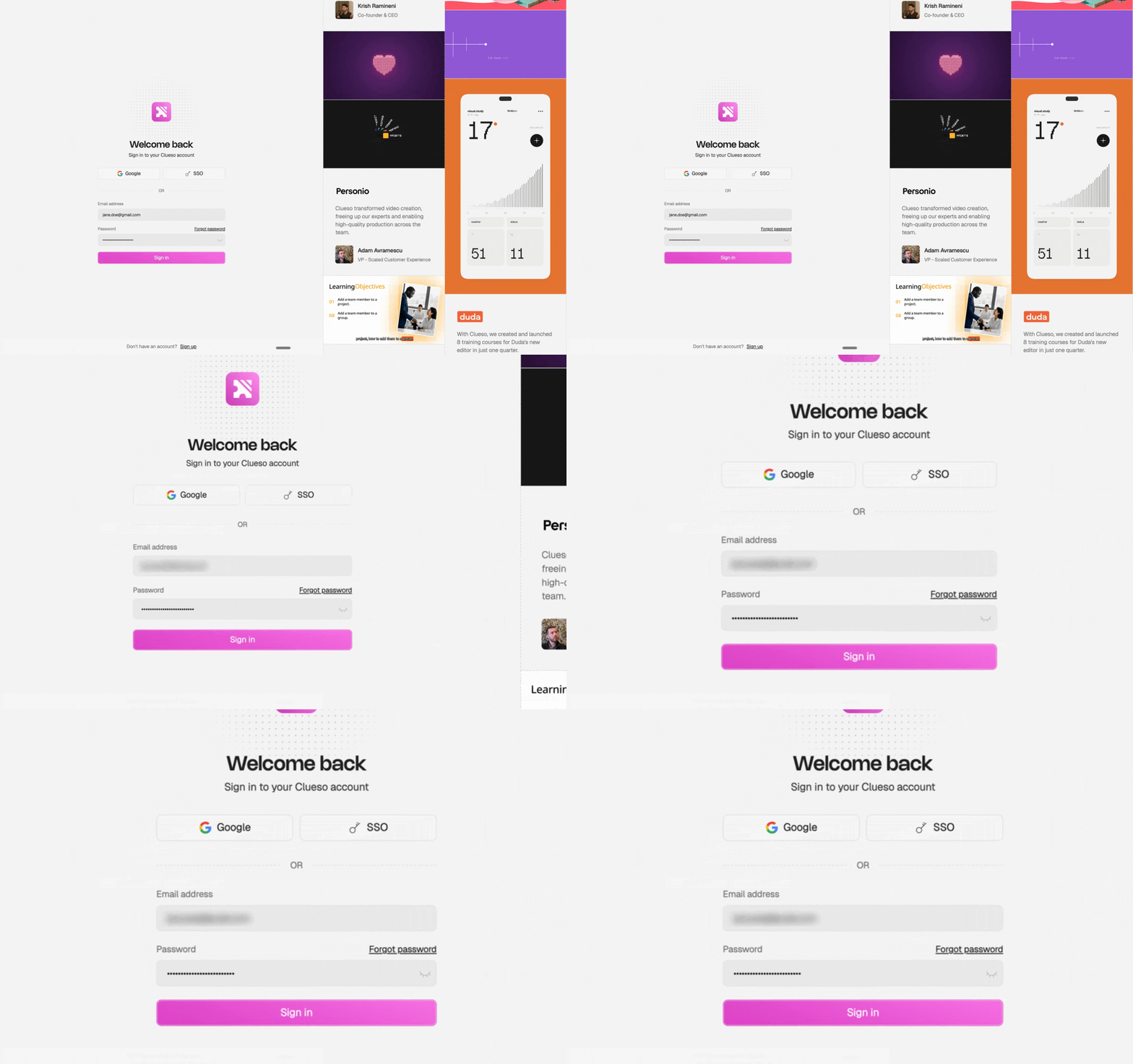
What you're creating: Consistent, on-brand blur applied to any sensitive data — same style across all shots.
Protect sensitive data with Gaussian blur or pixelation, depending on what blends best with your UI
Apply the same style across all shots — a sudden switch between blur types looks sloppy
Clueso lets you instantly blur out emails, API keys, order numbers, or anything you don't want visible.
8.5 Shortcuts & Keystrokes
What you're creating: Brief, well-placed keystroke overlays — shown only for recommended paths and auto-hidden after 2–3 seconds.
