Chapter 05
Adding Branding (Fonts, colors, logo)
Tasteful screen recording videos reflect your brand's tone and aesthetic. But branding doesn't mean slapping your logo on everything. Instead, think of branding as visual consistency: font choices, color hierarchy, and logo placement that quietly reinforce your identity without pulling focus.
Goal: Build trust and recognition with subtle, consistent branding that supports — but never overwhelms — the content.
5.1 Fonts
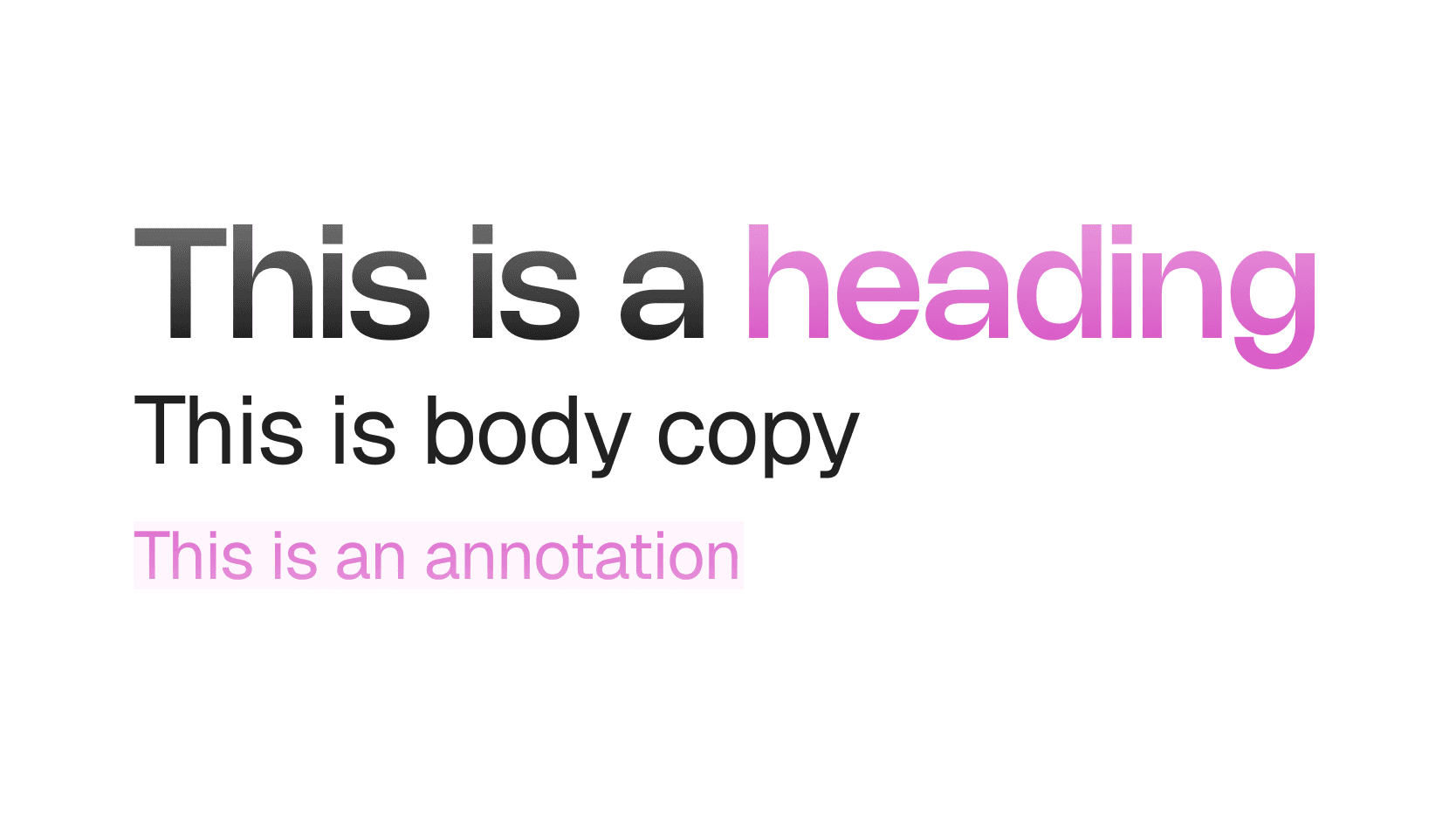
What you're creating: A legible, on-brand typographic system — one display face for headings, one clean sans-serif for labels — applied consistently across your video.
Font pairing
One display face for titles and headings (can be expressive or geometric) and one clean sans-serif for body text, labels, and callouts — if you already have brand fonts, use them consistently and avoid picking new onesSizes at 1080p
Titles 80–120 px, chapter markers 60–80 px, on-screen labels 36–48 pxFont weight
5.2 Colors
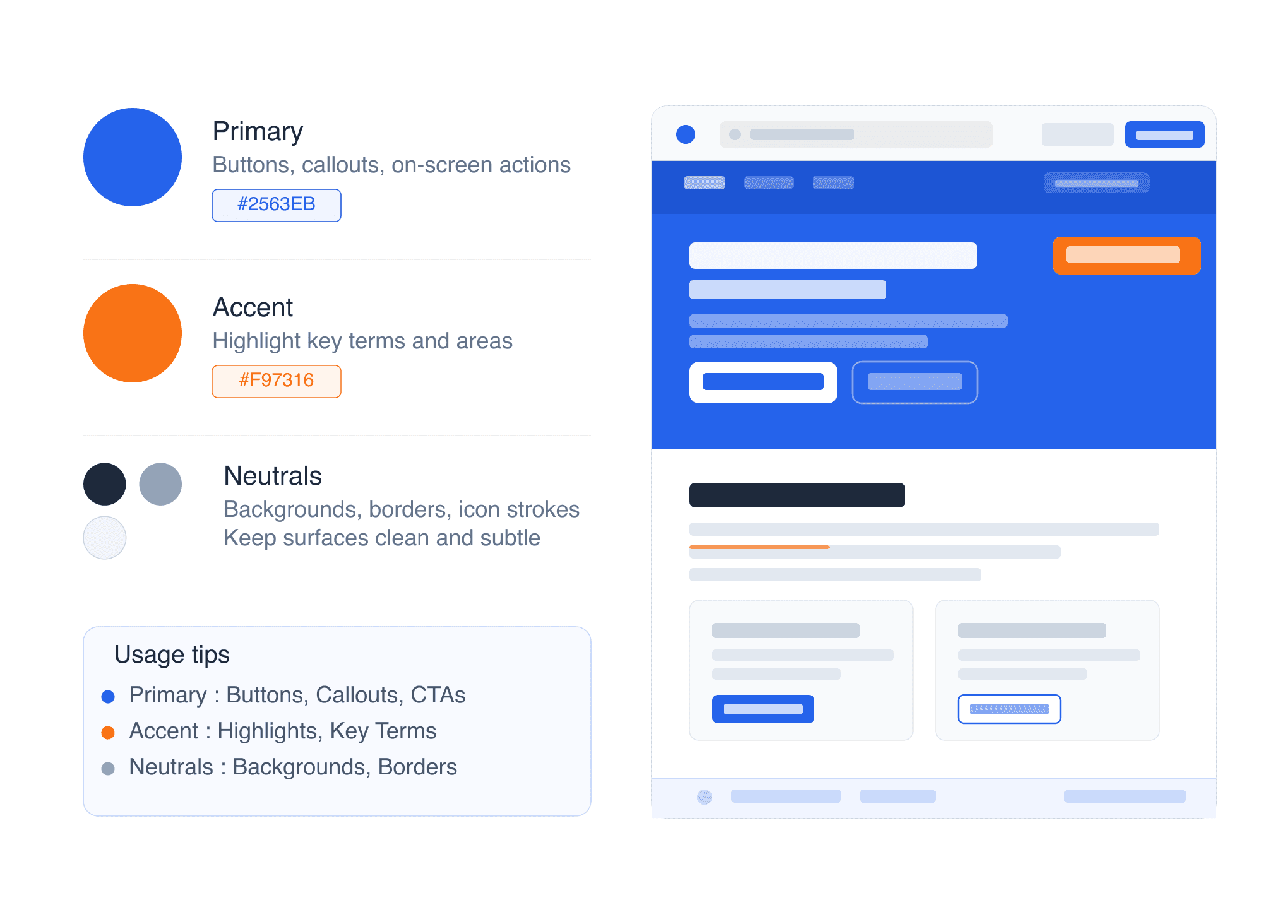
What you're creating: A minimal token set of brand colors — primary, accent, and neutrals — applied consistently with accessibility contrast in mind.
Build a minimal token set
Brand/Primary for main CTAs, highlight text, and key visuals; Brand/Accent for hover states, links, and secondary emphasis; Neutral/90 for primary text color; Neutral/10 for backgrounds or muted UI framesAccessibility
Maintain a minimum contrast ratio of 4.5:1 for text over color blocks — use light backgrounds with dark text (or vice versa), especially for smaller labelsUsage tips
5.3 Logo & Watermark
What you're creating: A consistent, non-intrusive logo placement and optional watermark that builds trust without covering content.
Logo placement
Watermarking
Use a 20–30% opacity watermark in the bottom-right corner and toggle it off during dense UI shots where overlays would interfere with clicks or instructions5.4 Applying Branding Across Videos
What you're creating: A consistent branded presence across every visual touchpoint — slides, labels, backgrounds, callouts, and thumbnails.
Apply branding consistently across
Intro, chapter, and outro slides / on-screen labels and tooltips / backgrounds / callouts (arrows, highlights, buttons) / lower-thirds / PiP frames or webcam borders / thumbnails — consistent fonts, color, and spacing improve recognitionYou can brand your videos effortlessly with Clueso. Drop in your fonts, colors, and logos once and apply them to every video. You can also add custom design elements like branded intros, outros, and backgrounds.